
Reports #
Here you will find an overview of the usage of apps, programs and websites as well as a log of all relevant activities on the device. You can also see if and which content has been blocked.
Select period
Overview
Apps
Audio
Websites
App history
Website history
Blocked history
YouTube history
User (Device) history
Web Portal history
Settings
Reset times
Select period #
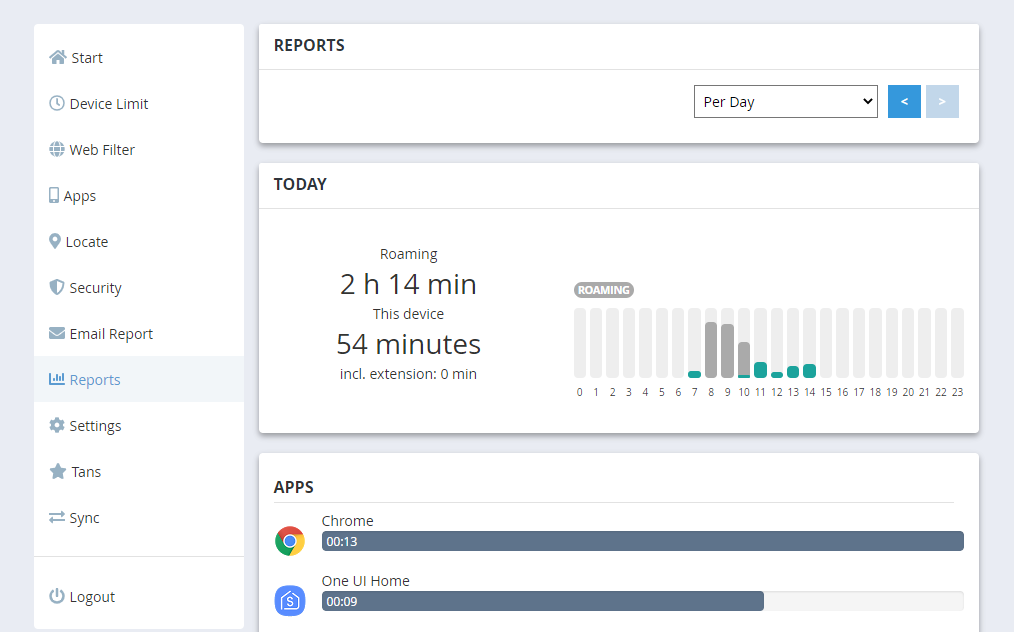
In the “Select period” section you define for which time range the reports should be displayed. Using the dropdown menu, you can choose whether the evaluation should be done per day, week, month or for a custom time period.
Below, the days (or weeks/months) are displayed as tiles. In the daily view, each tile shows the date and the total usage time for that day. On days without activity, “–:–” is displayed. By clicking on a tile, you select the desired day. The selected tile is highlighted and the reports below are updated automatically.
Use the arrow icons on the left and right to navigate to additional time periods.
Overview #
Here you can see the total usage duration of the selected device for the previously chosen time period. The total time in minutes as well as the sum of all granted extensions are displayed. The horizontal green bars show at what times the device was used. This provides a quick overview of when the device was active and how usage is distributed throughout the day.
If you have enabled the Roaming feature, an additional pie chart will be shown displaying the time distribution across the devices participating in roaming.
Apps #
In the Apps (Programs) section you will see a chronological overview of all applications used during the selected period. The usage duration is displayed for each app. Notes such as “Time limit” or “Allowed Plus” also appear, indicating the current status of the app.
Click on an entry to go directly to the settings for the access type (Allowed, Time limit, Group, etc.).
Audio #
This item in the reports is only available for Android devices. If the Audio limit is enabled, the audio usage time will be displayed here.
Websites #
Similar to the Apps section, this area provides a chronological overview of the websites used. Website usage time is only displayed if the web filter is active. Only usage times from websites opened in a standard browser are detected.
On Android, Chrome and Firefox are supported browsers, and unofficially also DuckDuckGo, Brave and Ecosia. On Windows, Chrome, Firefox or Microsoft Edge must be used for website time tracking. Further information on how the web filter works can be found in the Web Filter section.
App history #
This section shows a chronological list of the apps or programs that were used. For each entry, the exact date, time and name of the app used or started at that moment are displayed. The most recent activities appear at the top of the list, allowing you to track when specific apps were used.
Website history #
Similar to the Apps section, the used websites are listed here. For entries to be recorded, the same requirements apply as for website usage time tracking (see above). Further information on how the web filter works can be found in the Web Filter section.
Blocked history #
This section displays a list of all apps, programs or websites that were blocked due to the configured rules. Each entry includes the time of the access attempt and the affected domain. Using the “Allow” button, you can directly allow the corresponding app or website.
YouTube history (beta) #
In the “YouTube history” section, a chronological list of viewed YouTube content is displayed. For each entry, the date, time and video title are shown.
On Android, this history must be explicitly enabled via the three-dot menu. YouTube titles are only recorded on Android when the YouTube app is used. On Windows, the YouTube history is shown if the URLs are detected via the web filter.
Note: Android, Google or YouTube do not provide an official interface that allows access to YouTube viewing history. Therefore, our app uses its own detection method. This method may be affected at any time by changes or new versions of the YouTube app. For this reason, this feature is still marked as a beta feature and may work only partially or not at all in some cases.
User (Device) history #
Here you will see a detailed log of all activities related to the device session (user), as well as displayed warnings and granted extensions.
Web Portal history #
This entry refers to the separate Web Portal history section. Here you can see, for example, when someone logged into the web portal and which settings or changes were made.
Settings #
In the lower area, you can disable reports for this user. If this option is activated, no more data will be transmitted from the device to the web portal. Data already transferred remains available but will no longer appear in the daily and weekly email reports.
If you only want to exclude specific parts of the report (e.g. do not log websites), this can be disabled via the three-dot menu in the corresponding section.
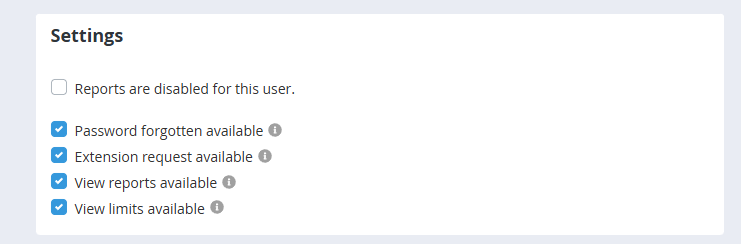
You can also define which functions should be visible on the child’s device:
Show “Forgot password”
Define whether the “Forgot password” link should be displayed in the app.
Show extension request
If this option is enabled, the “Extension request” button will be visible in the app. The child can request
additional usage time. To receive such requests, enable the option in the email reports or use the parent app.
A submitted request is automatically deleted after 8 hours.
Show reports
If enabled, the “Reports” button will be available on the child’s device, allowing the child to view the reports
in read-only mode.
Show limits
If enabled, the “Limits” button will be displayed on the child’s device. The child can view the defined limits
(read-only).
Reset times #
At the bottom of the page you will find the “Reset times” section. Using the red “Delete times” button, you can completely remove all recorded usage times and associated log entries.
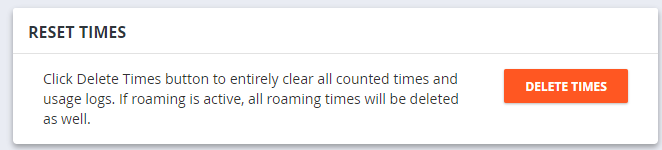
Deletion takes place both in the web portal and directly on the child’s device. All stored usage data will be permanently reset. This function is particularly useful if:
- a limit unexpectedly takes effect and the cause cannot be clearly identified
- you want to intentionally restart time tracking
- the system time on the child’s device was previously manipulated
If roaming is active, the times of the roaming account will also be reset.