
Account #
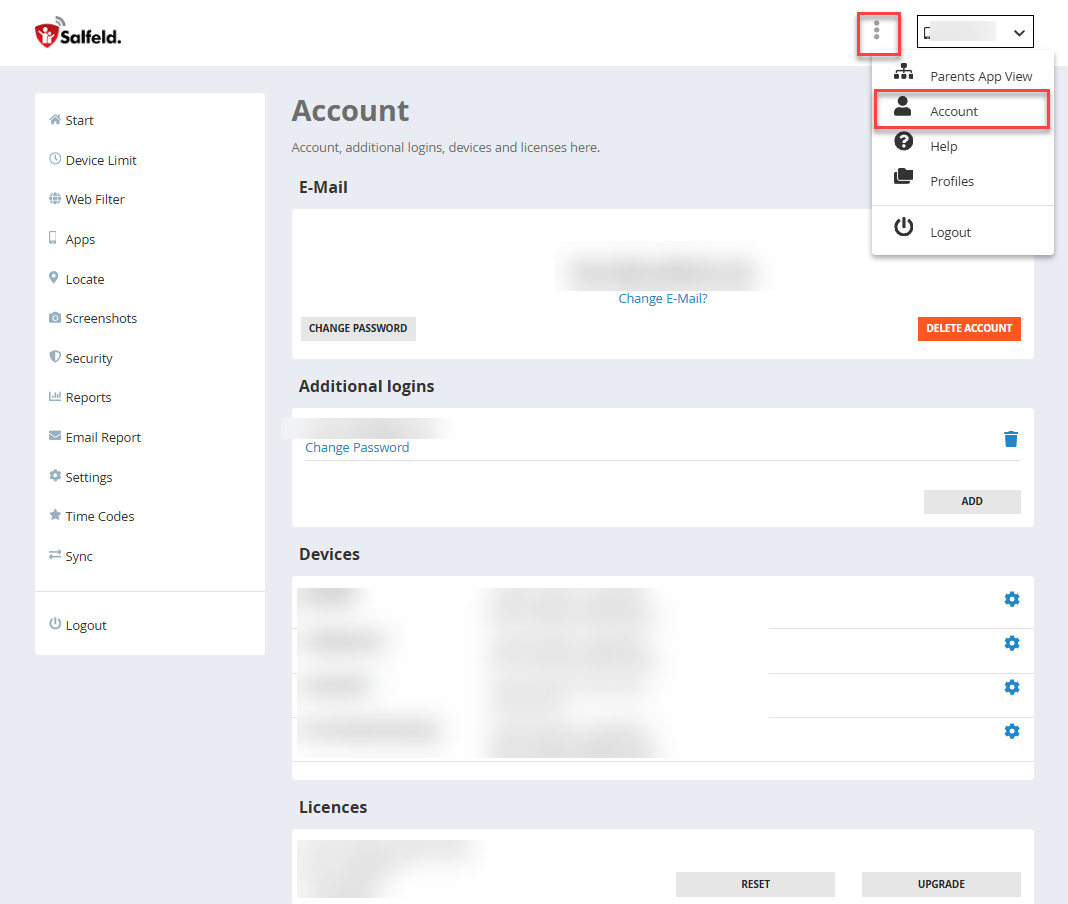
In the Account section you can manage the basic settings of your user account. Here you can change your password, create additional logins, manage devices, and view, assign or reset your licenses. The account section contains the following areas:
E-Mail
Additional logins
Devices
Licenses
Activity & Alerts
System notifications
E-Mail #
In the E-Mail section you can see the e-mail address currently associated with your account. This address is used to sign in to the portal and to receive important system notifications. The e-mail address can only be changed by uninstalling and reinstalling the app on the child’s device.
Using the “Change password” button you can set a new password at any time. We recommend choosing a secure password that is not used for other services.
The “Delete account” button permanently removes your user account from the portal. All associated settings and data will also be deleted. This action cannot be undone. Before deleting your account, the app must be uninstalled from all devices.
Additional logins #
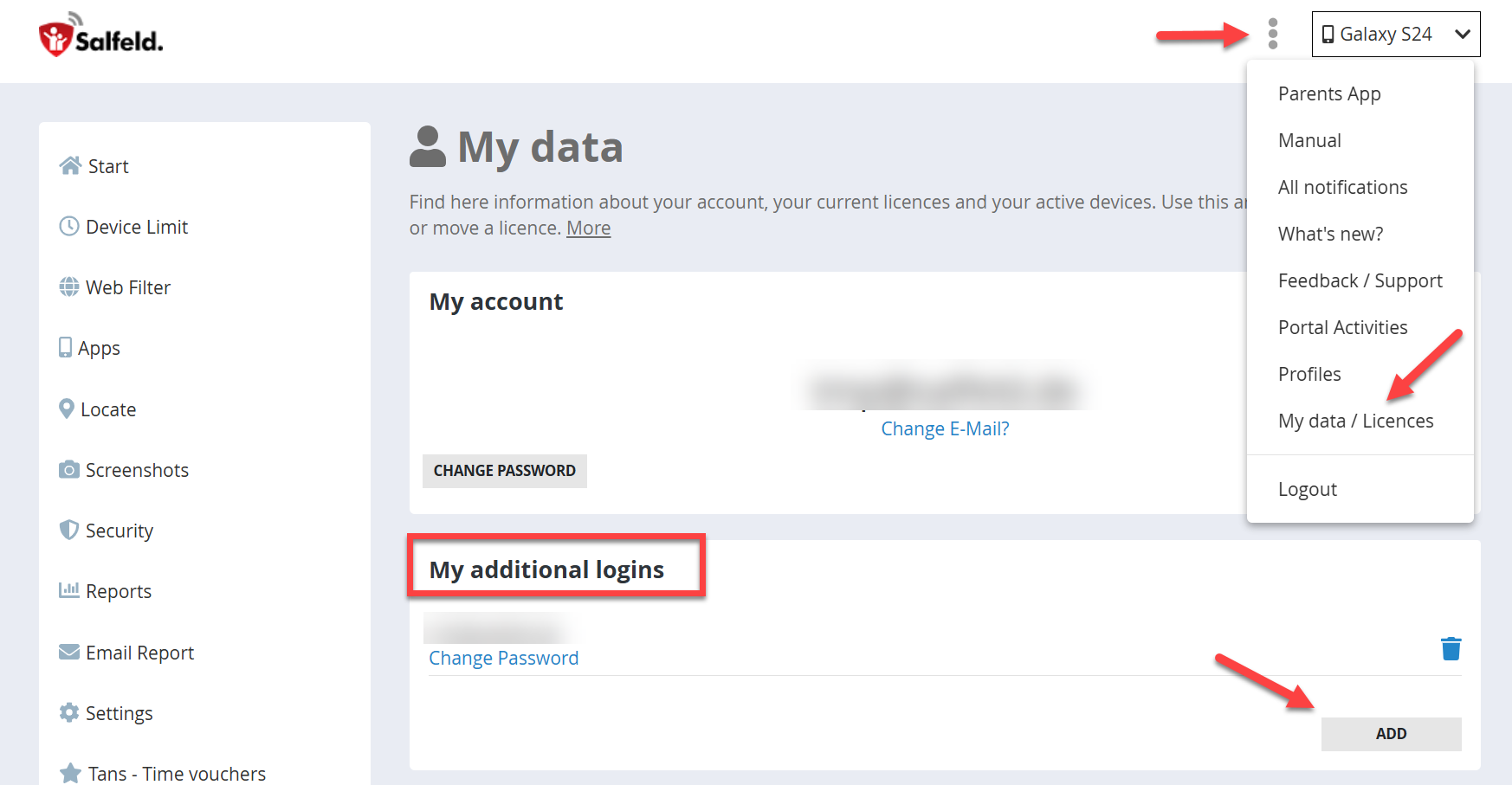
This section allows you to create additional login credentials for your account. This is useful if multiple people need access to the portal, for example both parents or other authorized persons. Each additional login has its own credentials but accesses the same account and the same devices.
Using “Add” you can create a new login. This additional login has the same permissions as the main user and can also be used with the free parent app.
Devices #
In the Devices section you can see all devices currently connected to your account. For each device various details are displayed, for example:
- the device name
- the current license status
- the license expiration date
- the license key used
Using the gear icon you can open the license page where you can enter the serial number of your license.
Licenses #
The Licenses section shows all serial numbers / licenses assigned to your account. Here you can see the serial number, the number of available device slots and the current license status. More detailed information about licenses can be found in the separate Licences section. The available buttons allow you to perform certain actions:
Reset: This function allows you to reset a license. This can be helpful if a device has been lost or is no longer accessible.
Upgrade: With this option you can expand your existing license to cover additional devices at a reduced cost.
Activity & Alerts #
The Activity & Alerts section displays important information about your account and your devices.
Notifications: This section shows system messages, warnings or important information about your individual devices. Examples include security notifications, permission requests, missing permissions or status messages.
Portal activities: The portal activity log provides an overview of access to your account. This includes, for example, logins to the web portal or other relevant activity. For more information, see the chapter Portal Activities.
System notifications #
In this section you can define whether you want to receive a notification when a password has been entered for Child Control. A notification will then be sent to the e-mail address of the account owner as well as to all additional logins. If parent apps are installed, they will also receive a push notification (Android only). If you use the parent app, please make sure that notifications for the Child Control app are enabled. For more information, see the chapter Parent App.
