
Account #
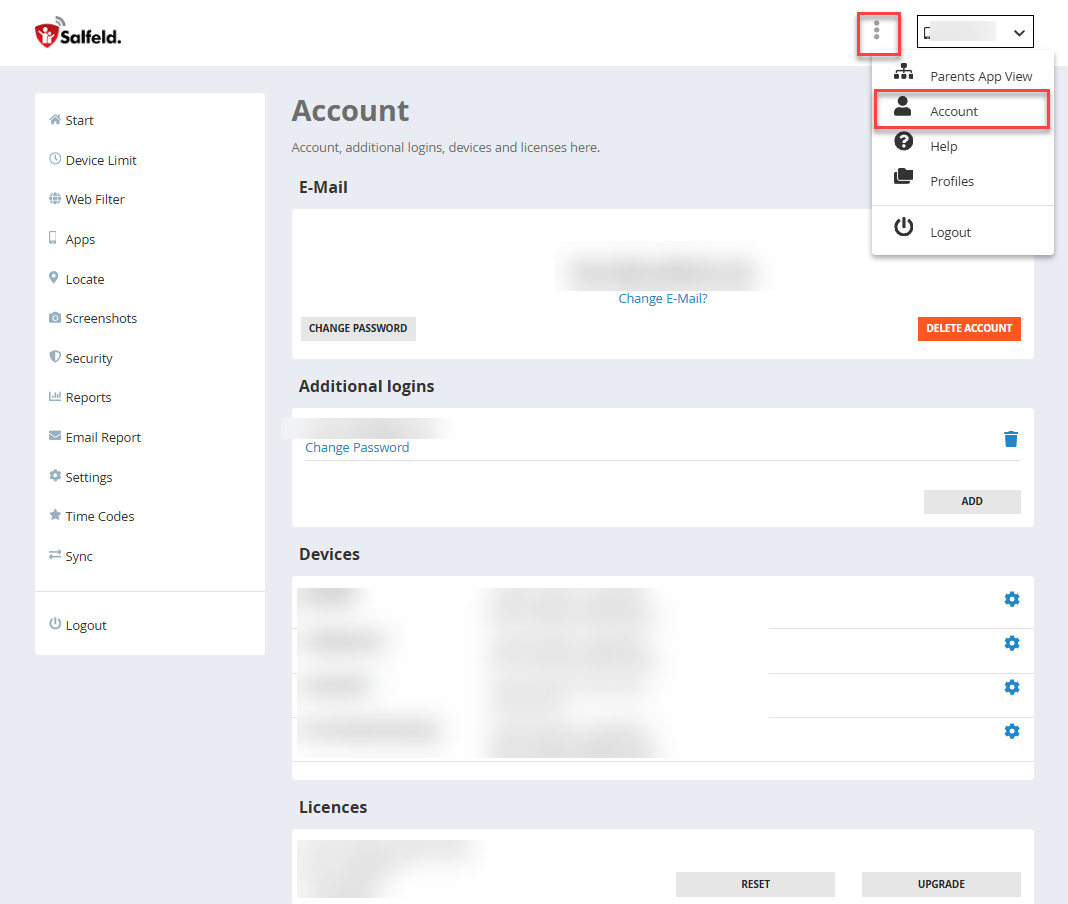
In the Account section you can manage the basic settings of your user account. Here you can change your password, create additional logins, protect the sign-in with a second factor, manage devices, and view, assign or reset your licenses. The account section contains the following areas:
E-Mail
Additional logins
Two-factor authentication
Devices
Licenses
Activity & Alerts
System notifications
E-Mail #
In the E-Mail section you can see the e-mail address currently associated with your account. This address is used to sign in to the portal and to receive important system notifications. The e-mail address can only be changed by uninstalling and reinstalling the app on the child’s device.
Using the “Change password” button you can set a new password at any time. We recommend choosing a secure password that is not used for other services.
The “Delete account” button permanently removes your user account from the portal. All associated settings and data will also be deleted. This action cannot be undone. Before deleting your account, the app must be uninstalled from all devices.
Additional logins #
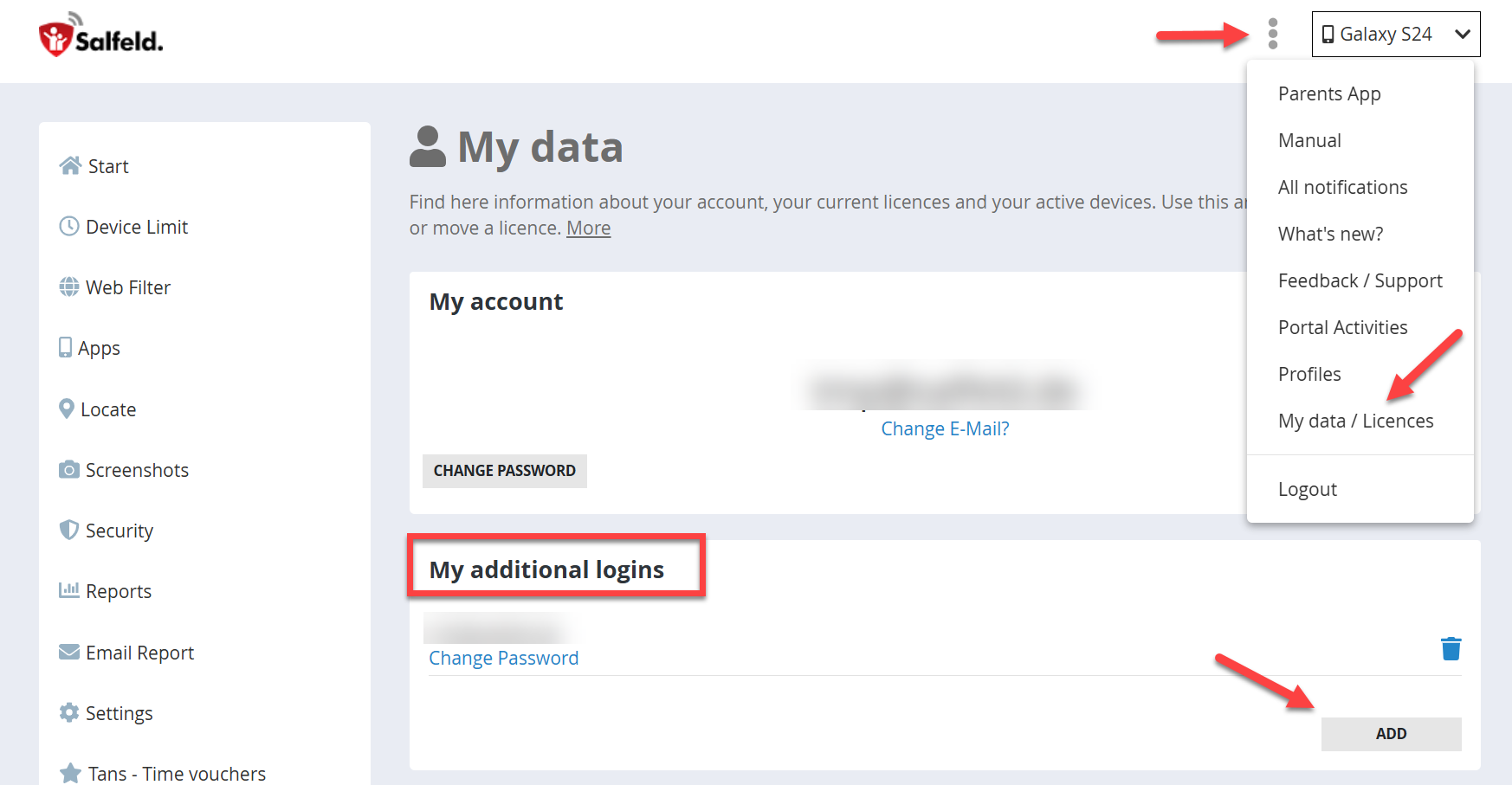
This section allows you to create additional login credentials for your account. This is useful if multiple people need access to the portal, for example both parents or other authorized persons. Each additional login has its own credentials but accesses the same account and the same devices.
Using “Add” you can create a new login. This additional login has the same permissions as the main user and can also be used with the free parent app.
Two-factor authentication #
With two-factor authentication you protect access to the web portal in addition to your password. After signing in with your e-mail address and password, the portal asks for a six-digit code generated by an authenticator app on your smartphone. Anyone who knows the password but does not have your smartphone can no longer enter the portal. For Child Control this is an important protection, because children know their parents’ password more often than parents expect.
The only supported second factor is an authenticator app, for example Microsoft Authenticator, Google Authenticator or a comparable app. Codes by e-mail or SMS are deliberately not offered: a code that arrives in the parents’ mailbox would be no obstacle for a child who has access to that mailbox.
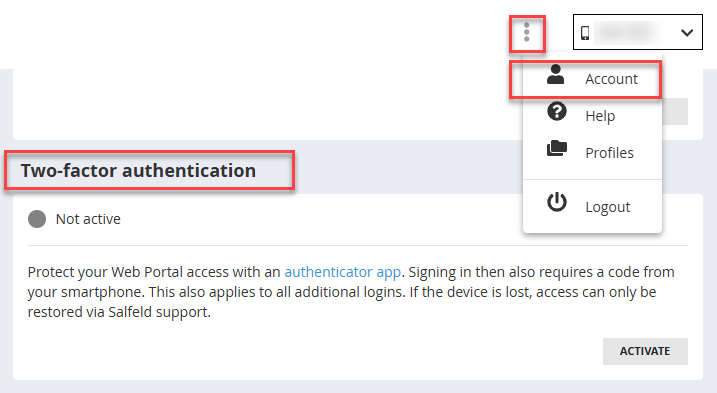
You will find the setting in the Account section, which you can open from the three-dot menu at the top right. As long as the function is not set up, the status shown there is “Not active”.
This is how you set up two-factor authentication:
- In the Two-factor authentication section, click “Activate”. The portal then displays a QR code.
- Open the authenticator app on your smartphone and scan this QR code. If scanning is not possible, click “Enter manually”. You will then receive a key that you can transfer using the “Copy” button or type into the app by hand.
- The authenticator app now shows a six-digit code that changes every 30 seconds. Enter this code in the portal and click “Confirm”.
If the entry was correct, the status changes to “Active”. Your current session stays signed in, so you do not have to sign in again right away.
The next time you sign in, you first enter your e-mail address and password as usual. An additional page then asks for the six-digit code. As soon as all six digits have been entered, the sign-in continues automatically. If a code has already expired, simply enter the next code from the app. There is deliberately no “trust this device” option, so the code is requested with every new sign-in. Within a running session you are not asked for it again.
If you would like to set up the second factor on another smartphone, for example for the second parent, use the “Show QR code again” option. For security reasons you first have to enter a current code. The same QR code is then displayed once more and can be scanned with another authenticator app. Both devices will then generate the same codes.
Two-factor authentication applies to the entire account. It is switched on by the main account and then also applies to all additional logins. These persons also need a code from an authenticator app to sign in. It is therefore best to set up the second factor together on all smartphones that are to have access to the portal.
To switch it off, click “Deactivate” and enter a current code from the app. Without a valid code the function cannot be switched off.
Please note: if you lose your smartphone or delete the authenticator app without having set up the second factor on another device beforehand, signing in is no longer possible. There are no recovery or backup codes. In this case access can only be restored by Salfeld support, and only after proof of your license or your purchase. Resetting the password yourself does not remove two-factor authentication.
Two-factor authentication only affects the sign-in to the web portal. Child Control on the child’s device continues to work unchanged, as does the synchronization of the devices. The links in the email reports also work as before without an additional code. If you open the portal from the parent app or from the Windows software, the code is requested there as well.
Devices #
In the Devices section you can see all devices currently connected to your account. For each device various details are displayed, for example:
- the device name
- the current license status
- the license expiration date
- the license key used
Using the gear icon you can open the license page where you can enter the serial number of your license.
Licenses #
The Licenses section shows all serial numbers / licenses assigned to your account. Here you can see the serial number, the number of available device slots and the current license status. More detailed information about licenses can be found in the separate Licences section. The available buttons allow you to perform certain actions:
Reset: This function allows you to reset a license. This can be helpful if a device has been lost or is no longer accessible.
Upgrade: With this option you can expand your existing license to cover additional devices at a reduced cost.
Activity & Alerts #
The Activity & Alerts section displays important information about your account and your devices.
Notifications: This section shows system messages, warnings or important information about your individual devices. Examples include security notifications, permission requests, missing permissions or status messages.
Portal activities: The portal activity log provides an overview of access to your account. This includes, for example, logins to the web portal or other relevant activity. For more information, see the chapter Portal Activities.
System notifications #
In this section you can define whether you want to receive a notification when a password has been entered for Child Control. A notification will then be sent to the e-mail address of the account owner as well as to all additional logins. If parent apps are installed, they will also receive a push notification (Android only). If you use the parent app, please make sure that notifications for the Child Control app are enabled. For more information, see the chapter Parent App.
