The Action Menu #
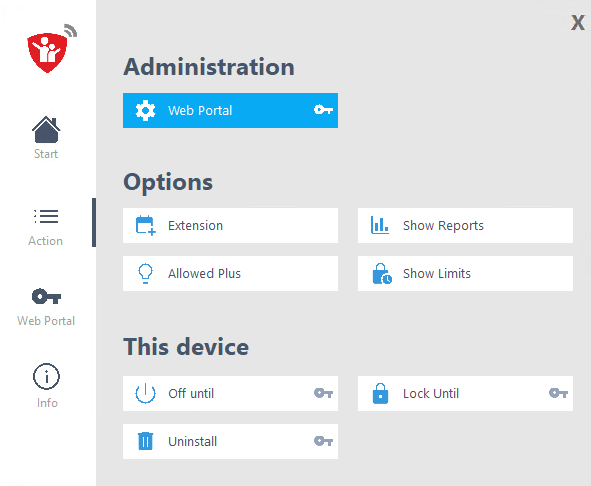
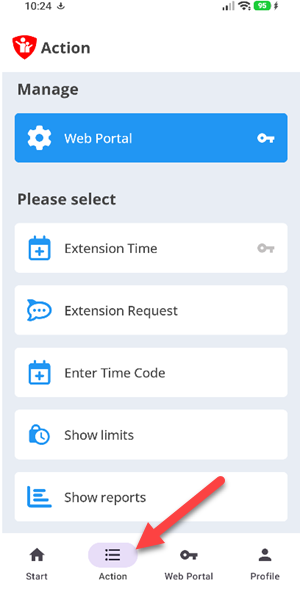
On both systems, the “Action” button opens a menu with further functions that are available directly on the device. Some items are marked with a lock symbol – these require your parent password. The following items are available in detail:
Web Portal
Through this button you can open all settings of the Web Portal from within the child app. Opening
it is protected by the password you have set.
Extension Request
Here the child can send an extension request (once within two hours). If you use the Android parent
app of Child Control, you receive a push notification directly. You can also be notified of
extension requests by email report.
Enter Time Code (voucher)
If you have stored time codes for your child in the Web Portal, your child can enter them right
here. A voucher time code is a six-digit number that you tell your child yourself and that is linked
to an extension time you have defined.
Show Bonus Time Codes
Unlike the “secret” time code, the bonus time codes (TANs) are visible to the child directly on the
device. By calling up this function, the child can view the list of bonus time codes currently
available.
Show Limits
Here the child can call up all limits that apply to them. This function requires an active internet
connection. The button is available in the child app by default, but you can disable it under
Web Portal > Settings > Options.
Show Reports
Here the child can view the current reports. The display is the same one you see under
Web Portal > Reports. This function requires an active internet connection. The button is available
in the child app by default, but you can disable it under Web Portal > Settings > Options.
OFF UNTIL
With this function, you as the parent can completely deactivate Child Control for a defined period
(days/hours/minutes). Running this function requires your parent password.
LOCK UNTIL
With this function, you as the parent can completely block the device for a defined period
(days/hours/minutes). Running this function requires your parent password.
Uninstall
Removes the app from the child’s device. Your password is required to run it. Make sure the device
has an internet connection so that it is also removed in the Web Portal and the associated data is
deleted as well. Read more in the chapter Uninstall.
Action Android #
Action Windows #