The Block Screen #
As soon as a limit is reached or a blocked program is started, Child Control intervenes visibly. This page describes what your child then sees and how the device can also be deliberately unblocked or blocked for a period through the action menu.
Did you know? You can replace the small superhero graphic with your own image in the Web Portal under Settings.
Block Screen Android
Block Screen Windows
Block Screen Android #
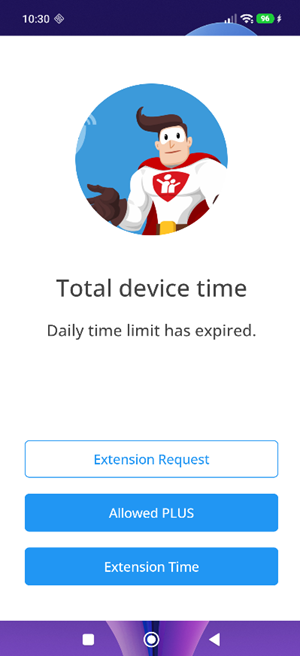
When a limit is reached or a blocked app is started, the Child Control block screen covers the display. At the top is the reason for the block, for example “Daily time limit has expired.”, “Current time lies in a Blocked Time.” or “This app is permanently blocked.”
Depending on your settings, various buttons are available below. For a blocked app it can be unblocked with the parent password; for a total limit there are the buttons Extension, Allowed PLUS for opening an always-allowed app, and Extension Request (this can also be disabled in the Settings area).
Block Screen Windows #
Before time runs out, the software shows a warning, for example “5 minutes remaining”. You define the intervals at which warnings appear, whether the message disappears on its own or whether only a sound is played (game mode) in the Web Portal under Settings.
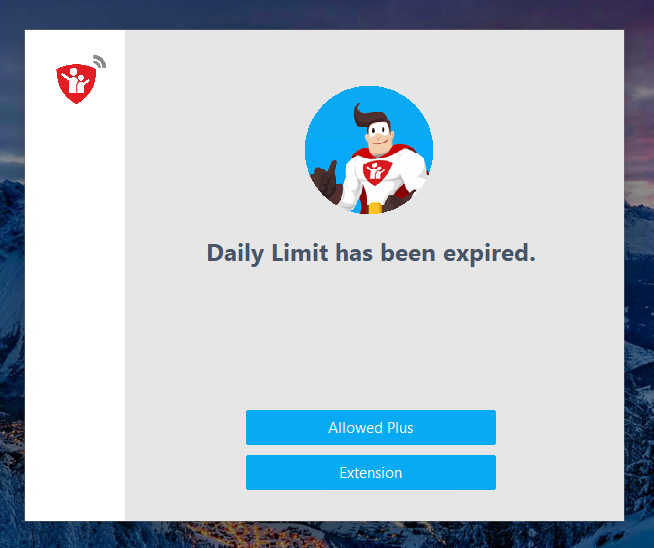
Once time has run out, the further behaviour depends on your setting: by default the Child Control block screen appears; alternatively the PC can be shut down, the user logged off or the native Windows lock screen called up. You can define the respective action under Device Limit > Limit reached action.
On the Child Control block screen, just as on Android, there are buttons for the extension, redeeming a time code and entering the parent password. For a forced break or device block, the block screen states the time from which the PC can be used again.