
Start and Info Window #
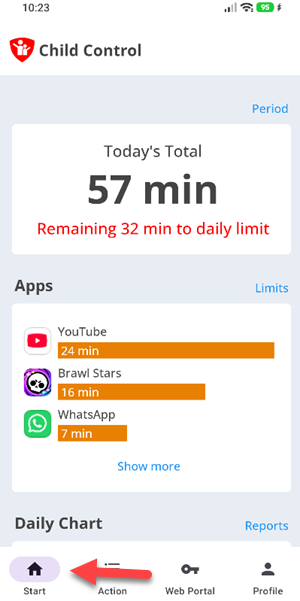
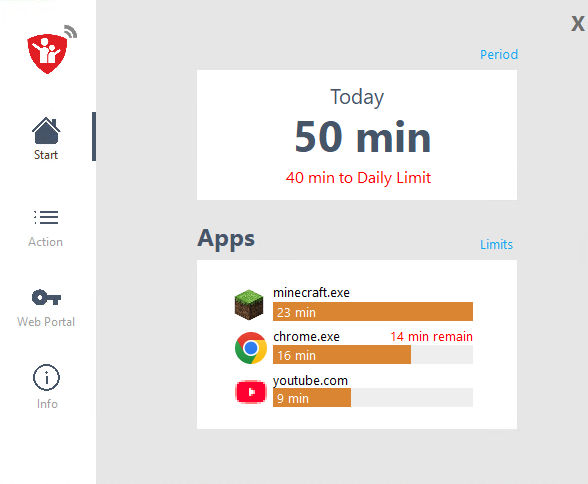
On both Android and Windows, Child Control shows at a glance how much time has been used today and how much time is still available today. Nothing is configured on the device itself – you make all settings in the Web Portal or through the “Web Portal” icon in the app. Here you will learn how this start screen on the child’s device is structured.
Info Window Android
Info Window Windows
Time Remaining
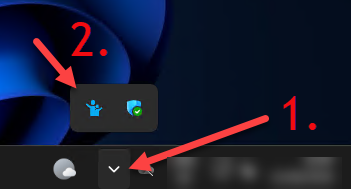
There is one difference in how it is opened. On Windows, this info window can be opened through the icon in the taskbar or, alternatively, with the key combination Shift + Ctrl + F6. On an Android device, the child simply starts the “Child Control” app to reach this overview.
The top card “Today’s Total” shows the time already used today in large type, for example “1h 15m”. If you have set an extension, the additional time appears below it as “Extension Time”. As soon as less than eight hours remain, the app shows the time remaining, for example “45m left”, together with the reason for the limit – such as “until the daily limit”, “until the weekly limit”, “until a blocked time” or “until a break”.
The “Apps” card lists the apps used today. For each app you see the time already used and, if an app limit is set, a bar as well as the time remaining with the note “xx min left”.
If Child Control is currently switched off for the device, the message “Child Control is currently turned off on this device.” appears instead of the time display. If shared time counting across several devices (Roaming) is used, the top card switches to “Roaming” and shows both the total roaming time and the time for this device.
Info Window Android #
The start and info screen of the Android version is opened by tapping the Child Control app icon.
Info Window Windows #
To open the Windows info window, click the corresponding icon in the Windows taskbar or press the key combination Shift + Ctrl + F6.
Time Remaining #
Child Control offers numerous individually configurable limits. Time limits such as the weekly limit, daily limit, blocked times and breaks can be combined freely. The shortest or strictest limit currently in force always applies. So during a blocked time the limit may already be reached even though the daily limit has not yet been used up.
For this reason the info window can only ever show the time until the next limit – but not how much time in total is still available for a weekly or monthly limit. The time remaining is only shown once less than eight hours are left. Through the “Action” area, however, your child can view the reports and call up the configured limits at any time.