
FAQ Huawei and Honor #
Huawei devices have a very special Android implementation that does not always follow common Android standards. This page covers the most important device-specific settings for the Child Control app and points out possible ways the app can be tampered with.
Important: adjust the battery settings
Re-enable the accessibility service
Uninstall from the home screen?
Huawei without Google services
Note on Honor devices
Note on HarmonyOS
Please note: Huawei renames and rearranges menu items from version to version. Depending on the EMUI or HarmonyOS version and the model, the menus on your device may be named differently from the description below. The quickest way to find an entry is the search box at the top of the Settings app.
Important: adjust the battery settings #
Huawei devices shut down background services particularly aggressively as soon as the battery level drops or a power saving plan is active. To keep the time counting of Child Control from stopping, the app must be excluded from this management.
On the child’s device open Settings and search for App launch (on many devices you will also find it under Settings > Battery > App launch). Select the Child Control entry from the list and turn off Manage automatically. Then enable all three options in the dialog that appears: Auto-launch, Secondary launch and Run in background.
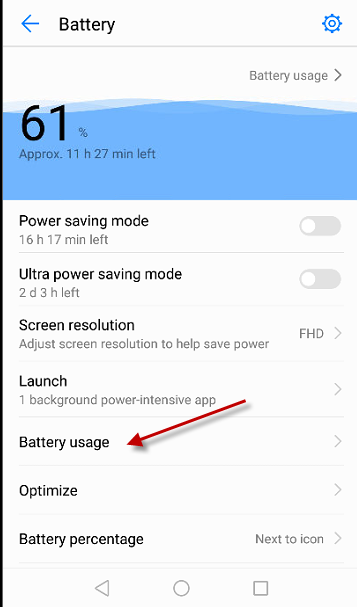
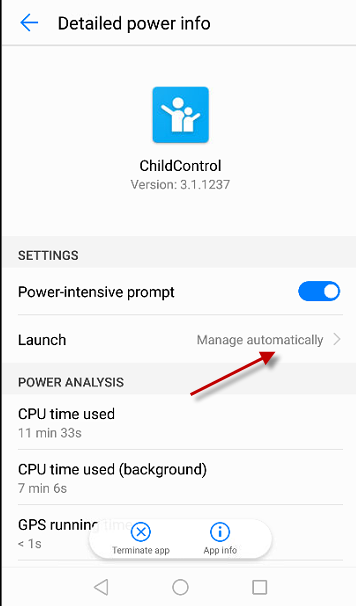
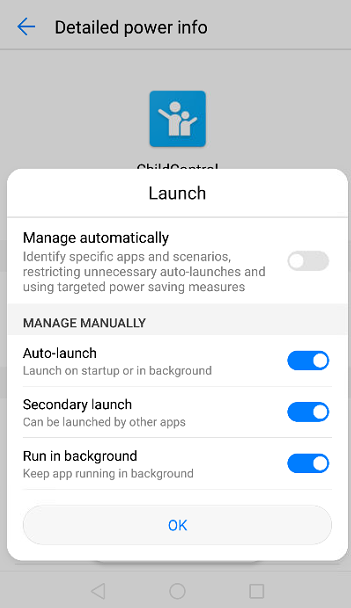
On older devices (from Android 7.x) the same dialog is reached via Settings > Battery > Battery usage > Software > Child Control. Set the start behaviour there to Manage manually as well. The screenshots above were taken on an older EMUI version.
Please also check the following:
- Settings > Battery: Power saving mode and Ultra power saving mode switched off
- Settings > search for Battery optimization: set the Child Control app to Don’t allow
- Settings > Battery > More battery settings: enable Stay connected while asleep
The Ultra power saving mode deserves special attention: it only permits a few selected apps and shuts down all other background services. This also stops the time counting of Child Control. The mode is usually not opened from the settings but from a tile in the notification bar - which means it is easily switched on by accident. We recommend moving that tile back or removing it completely using the Edit button at the bottom of the notification bar. After this mode has been used, always check whether the accessibility service is still active (see the next section).
Re-enable the accessibility service #
An enabled accessibility service is required for the web filter and for the protection of certain areas of the settings. If the accessibility service is disabled, you will receive a message on the start page of the Web Portal.
On current devices you enable the service via Settings > Accessibility features > Accessibility > Child Control > Turn on. On older EMUI versions the same entry is located under Settings > Smart assistance > Accessibility > Child Control > Turn on:
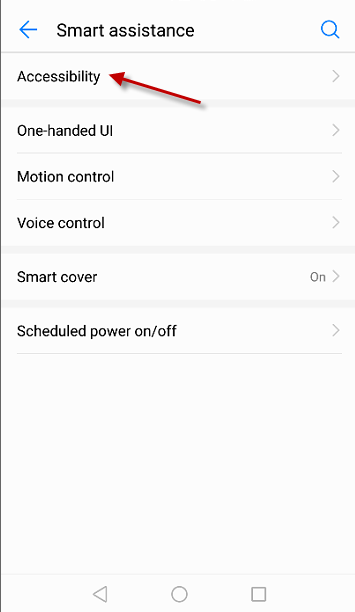
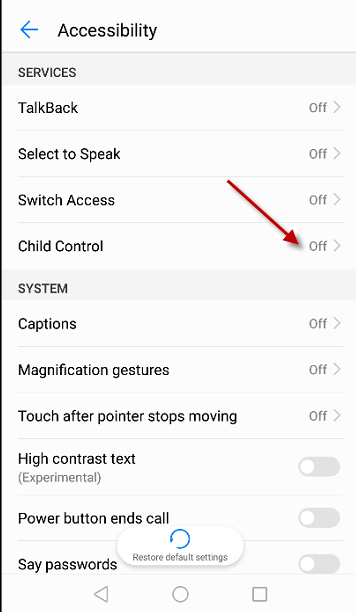
If the web filter still does not work in the Chrome browser afterwards, please restart the Huawei device once. It may also take a while until the warning message in the Web Portal disappears. For general information see the chapter Required Android permissions.
Uninstall from the home screen? #
On Huawei devices an app can be removed in the default configuration simply by holding down its icon on the home screen and dragging it to the bin or to the “Uninstall” target. We have tested this on various Huawei devices with other (including very well-known security) apps as well: they all have the same problem and can be removed this way. On other devices uninstalling is effectively prevented by the device administrator.
With this kind of uninstall, the child’s device is not deleted from the Web Portal. You will notice it because the “Last sync” date in the Web Portal keeps getting older and you no longer see any current logs. We recommend taking a regular look at the logs. You can also enable the e-mail reports (daily if you like) to stay up to date.
An effective countermeasure is the suspected manipulation option under Web Portal > Security. With an active accessibility service, an attempt to remove the app this way is detected as manipulation. The device then stays blocked until you release it again with your password or via the Web Portal. In addition it is worth blocking the Settings option under Web Portal > Security so that permissions cannot be withdrawn from the Child Control app through the Settings app.
Huawei without Google services #
Huawei devices released since mid-2019 ship without the Google Play Store and without Google services. On these devices you do not install the Child Control app from the Play Store but as an APK file directly from our download page. You will find details in the chapter Installation Android.
Without Google services no FCM token is available on the device. This means that the immediate location request (GPS) from the Web Portal does not work, and changes to limits are not transferred to the device in real time but only with the next regular sync. Limits that have already been set of course continue to apply on the device. For more information see the section FCM-Token error.
Note on Honor devices #
Until the end of 2020 Honor belonged to Huawei and used practically the same system under the name Magic UI. Everything described on this page therefore applies without restriction to older Honor models.
Since the spin-off, Honor has been an independent brand. Current Honor devices run MagicOS and are again shipped with the Google Play Store and Google services - so the section Huawei without Google services does not apply to them. The aggressive battery management has remained in MagicOS, however; the relevant menu items are named similarly to the description above and are likewise found in the Battery or App launch area.
Note on HarmonyOS #
In Europe Huawei still ships EMUI or the Android-based HarmonyOS (version 4 and older). On these devices the Child Control app runs like on any other Android device.
This has to be distinguished from HarmonyOS NEXT (also called HarmonyOS 5): that version drops the Android foundation entirely and no longer runs Android apps. The Child Control app therefore cannot be installed on a device running HarmonyOS NEXT. So far Huawei only uses HarmonyOS NEXT on the Chinese market; it is currently not available for devices bought in Europe.