
FAQ Other Manufacturers #
Many manufacturers build their own power saving features into their Android version, and these stop or pause background services. Child Control is affected by exactly that: once the service is stopped, the app no longer counts time and limits do not take effect. This page covers the settings needed for Motorola, ZTE and for devices with the MediaTek feature DuraSpeed (including Blackview and Ulefone).
The major manufacturers have their own pages: Huawei and Honor, Samsung and Xiaomi (also Redmi and Poco).
Motorola
ZTE
DuraSpeed: Blackview, Ulefone and others
Device not listed?
Depending on the model and Android version, the menu items on your device may be named differently. The quickest way to find an entry is the search box at the top of the Settings app. The screenshots below were taken on German-language devices; the position of the settings is the same.
Motorola #
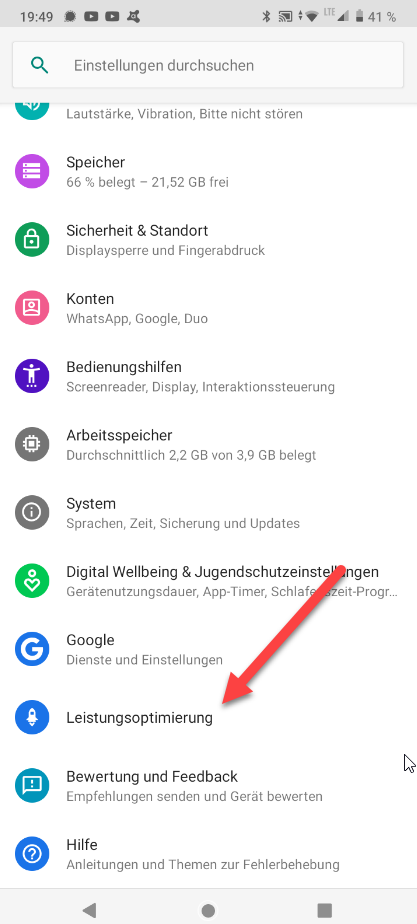
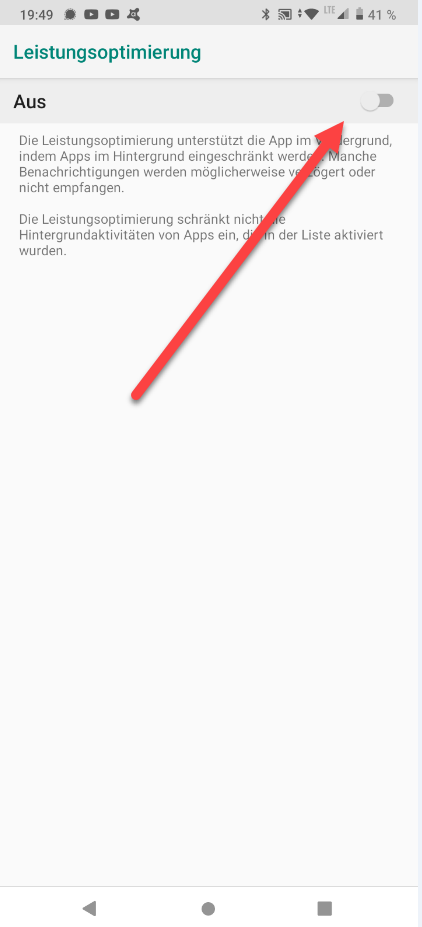
Motorola devices come with their own Performance optimisation feature that restricts apps in the background. Important: excluding only the Child Control app from the optimisation is not enough. Instead switch the whole feature off using the slider at the top.
On the child’s device go to Settings > Performance optimisation and set the switch to Off:
ZTE #
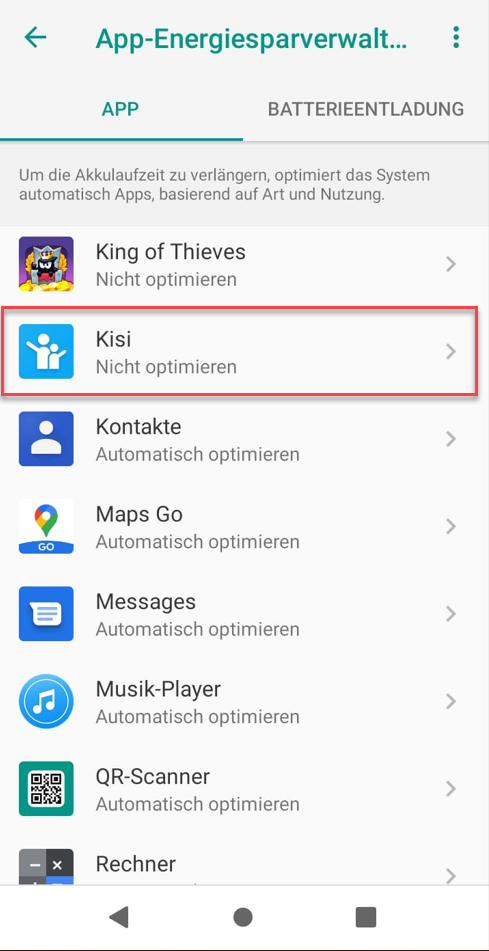
For Child Control to work correctly on ZTE devices, a few battery settings are required. Take the child’s device and go to Settings > Battery > App power saving management. Select the Child Control entry from the list and set it to Do not optimise:
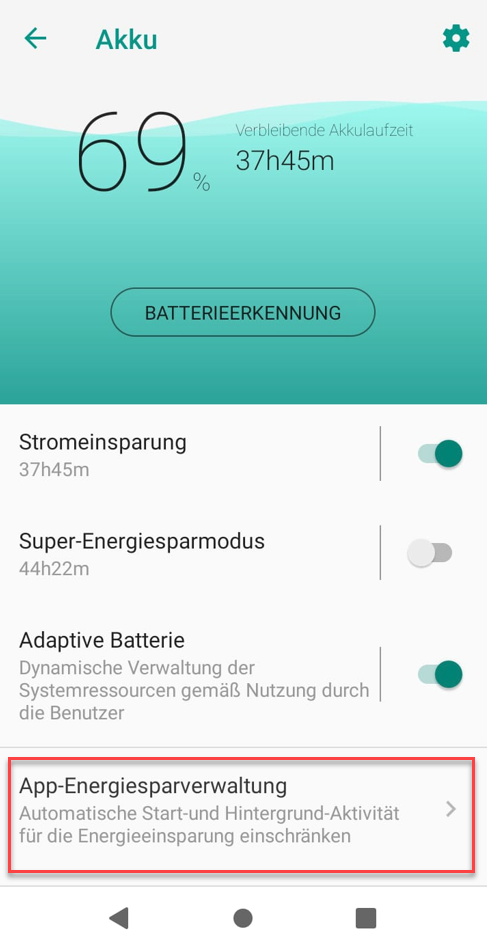
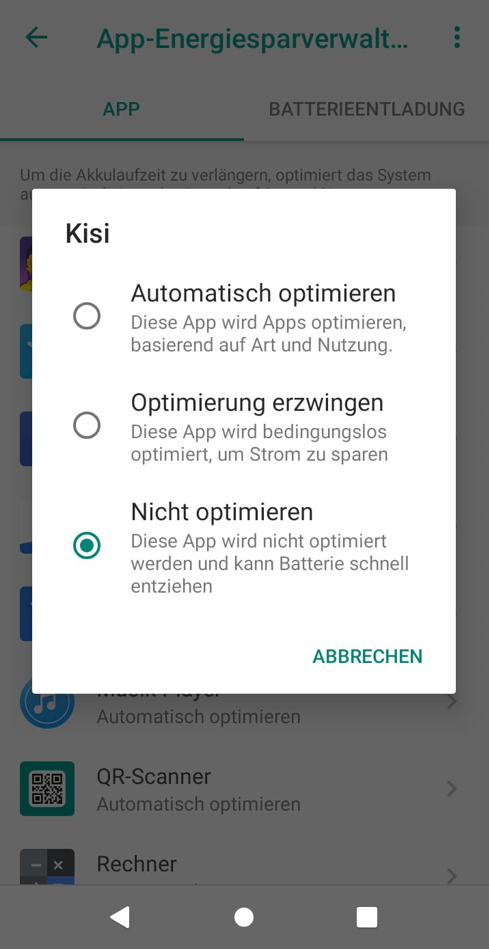
On the battery page please also check that Super power saving mode is switched off. It shuts down all background services and therefore stops the time counting.
DuraSpeed: Blackview, Ulefone and others #
Many devices with a MediaTek processor include the DuraSpeed feature. It speeds up the app currently in the foreground by restricting the background services of all other apps - which hits Child Control precisely. Besides Blackview and Ulefone, DuraSpeed is also found on devices from Cubot, Doogee and Oukitel, among others.
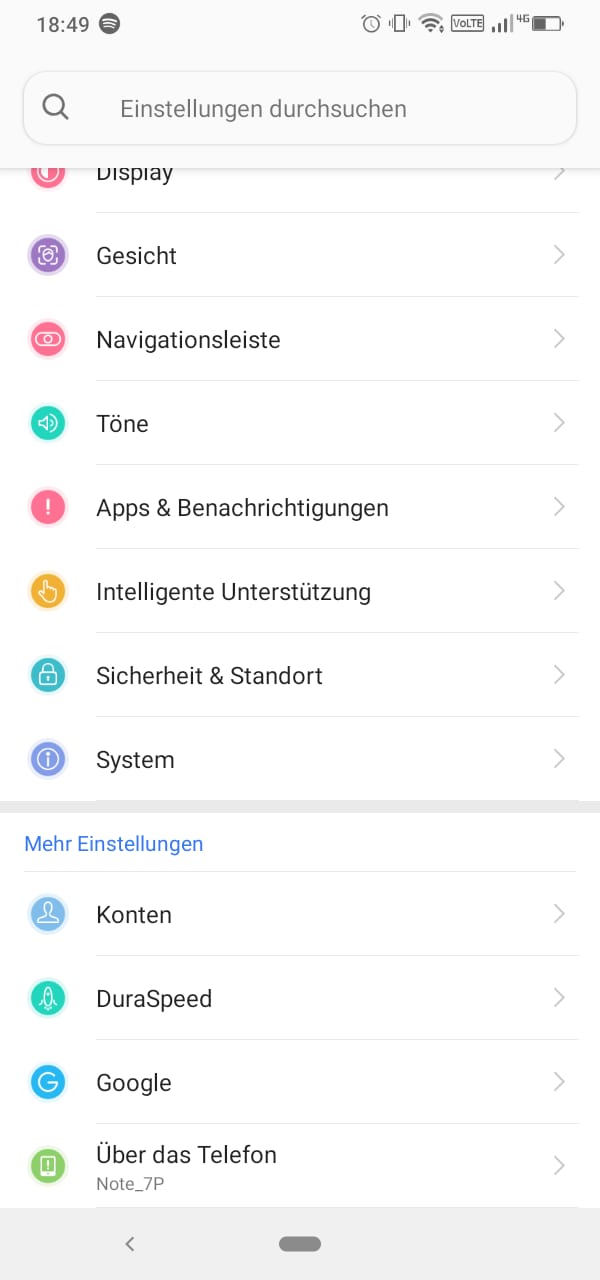
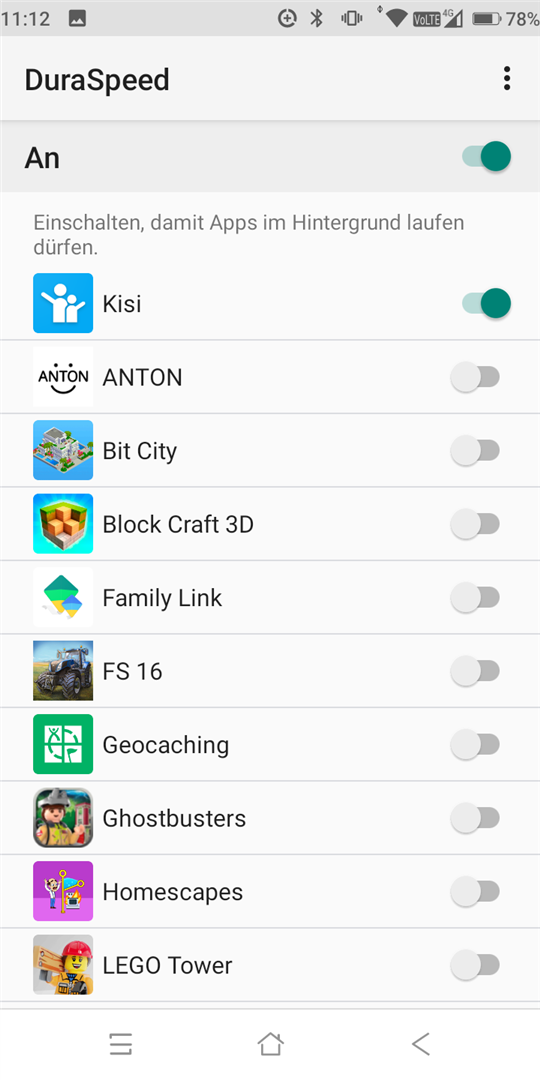
You have two options: switch DuraSpeed off completely, or leave it on and allow the Child Control app there. Go to Settings > DuraSpeed (on some devices the entry is located under Settings > Smart assistance > DuraSpeed) and enable the switch for the Child Control app in the list:
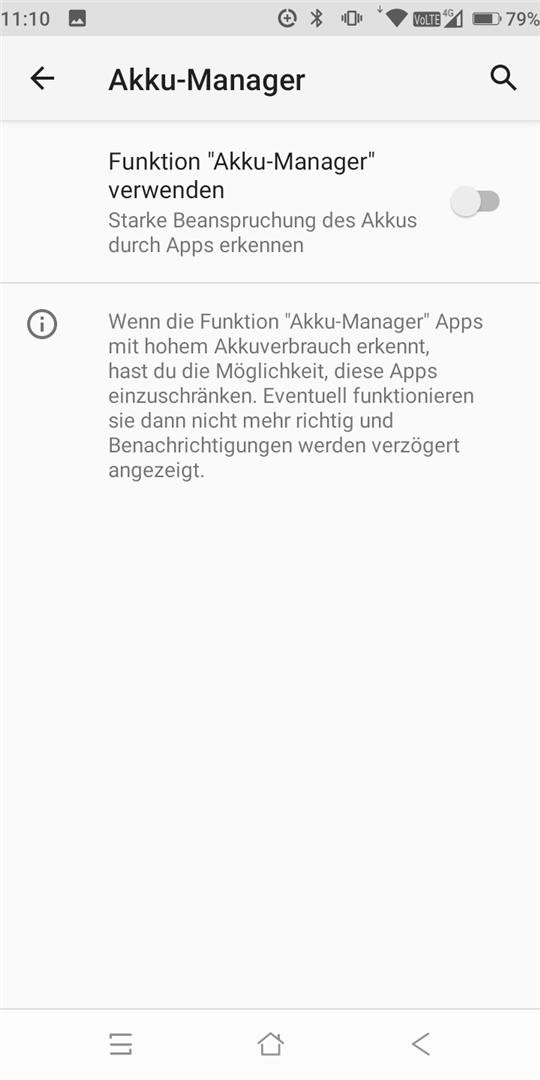
In addition on Blackview: under Settings > Battery > Battery manager, switch off the “Use battery manager” function:
Important: on some devices the system resets the DuraSpeed setting on its own after a while. Please check this setting again if the time counting stops working. You can also block DuraSpeed as an app in Child Control so that the setting can no longer be changed.
Device not listed? #
Almost every manufacturer ships its own power saving programs, and the names change with every Android version. An independent, manufacturer-wide overview of which settings are needed on which device can be found at dontkillmyapp.com. The steps described there apply to the Child Control app as well.
The general Android troubleshooting checklist is also worth a look. If you get stuck, our customer service will be happy to help. Please include the model and manufacturer of the child’s device and the Android version.