
FAQ-Xiaomi #
If the app is not working correctly on a Xiaomi device, please check the following settings on the device. If these settings are blocked by Child Control, you can temporarily set them to “Allowed” under Web Portal > Security > Settings
Also applies to Redmi and Poco: both are Xiaomi brands. The devices use the same system interface (MIUI or HyperOS), so everything on this page applies to Redmi and Poco devices as well.
App Details
Other Permissions
Set Power Saving Mode
Background Auto-Start
Ultra battery saver
App Details #
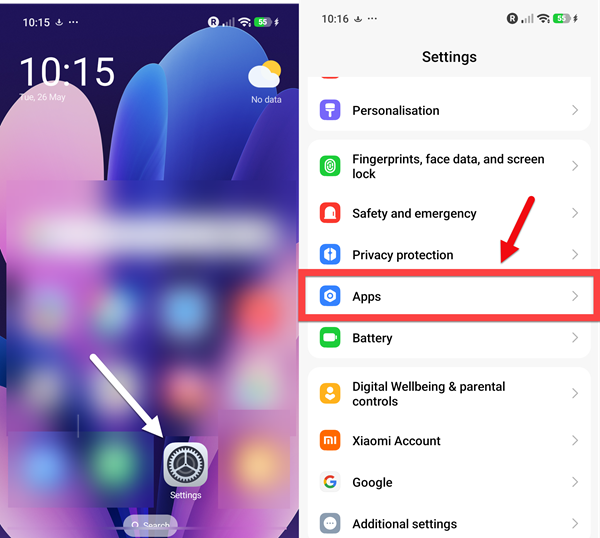
On the child’s device, go to Settings > Apps
Other Permissions #
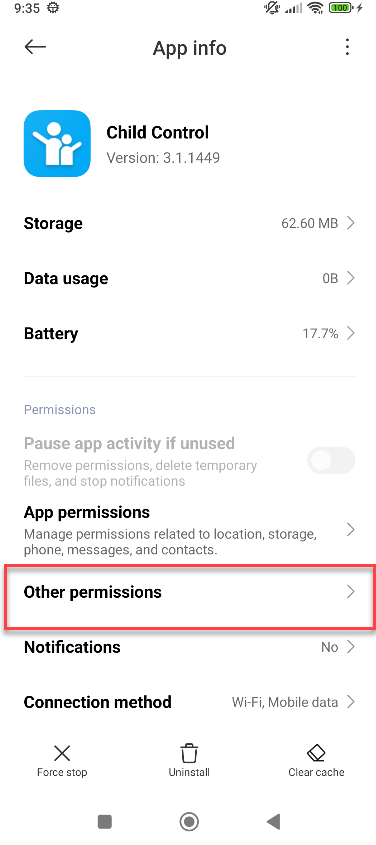
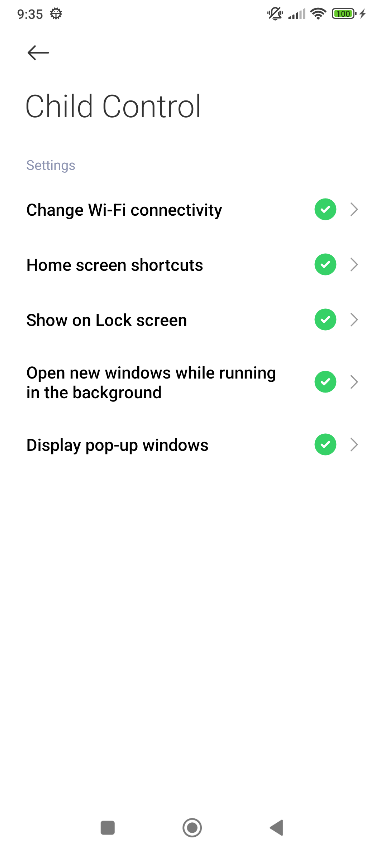
Select the Child Control app from the list of apps, then go to Other Permissions. Enable at least the last three options, including Display pop-up windows, Show on Lock Screen, and Open new window while running in background.
Set Battery Saving Mode #
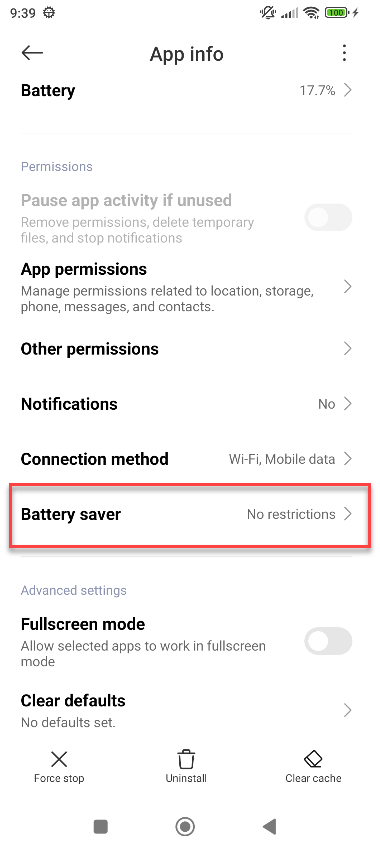
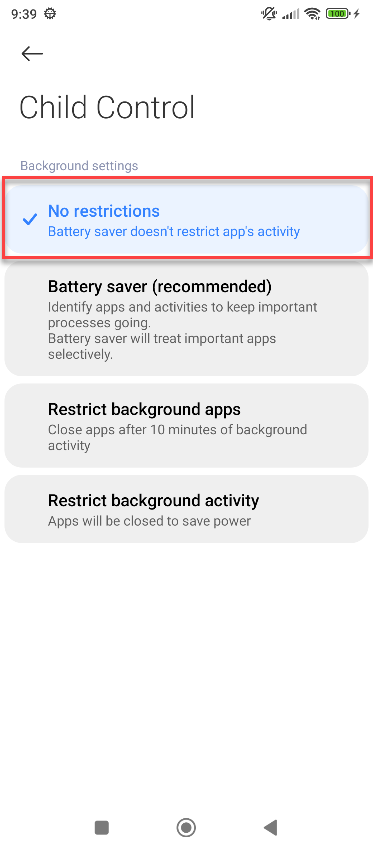
Select in the App info of the Child Control app the Battery saver menu and set the battery mode to No restrictions:
Background Autostart #
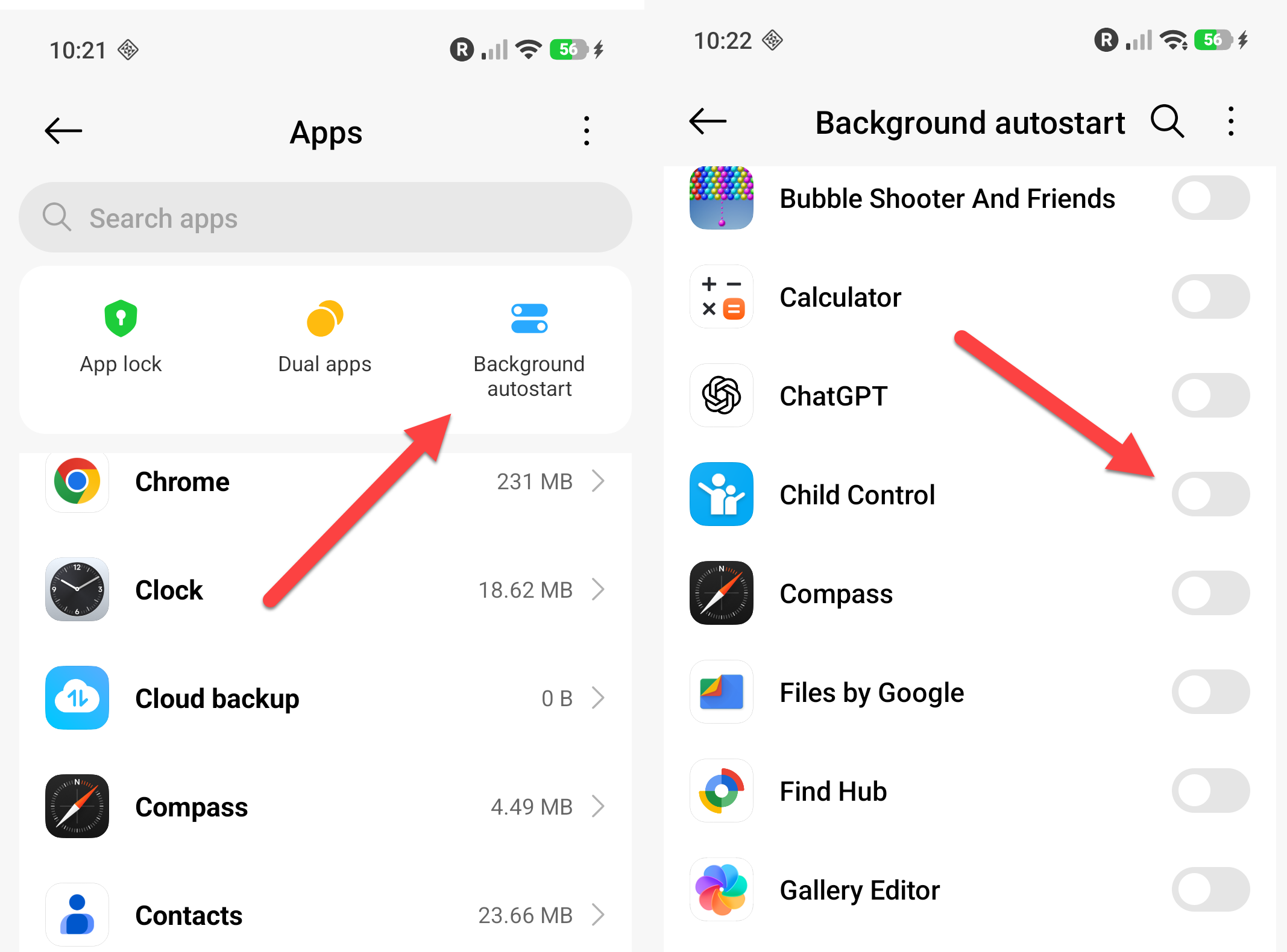
Go to Settings > Apps > Background autostart and enable the Child Control entry.
Ultra battery saver #
In addition to the ordinary battery saver, Xiaomi devices also offer an Ultra battery saver. A similar feature exists on Redmi, Poco and Huawei devices. As a rule this mode is not opened from the settings but directly from the notification bar: when the bar is pulled down from the top, there is a tile labelled Ultra battery saver.
As soon as this mode is activated, the device shuts down all background services. This also stops the time counting of Child Control. The actual problem, however, lies in the way the mode is implemented: when it is switched off again, the services are not restarted automatically. The accessibility service in particular remains permanently disabled, even if the device is restarted in the meantime. Child Control therefore stays out of operation until you intervene. The mode is not always turned on deliberately, but occasionally also by accident, because the tile in the notification bar is easy to reach.
We recommend making the tile inaccessible for your child. Using the Edit button at the bottom of the notification bar, the tiles can be rearranged or removed. Move the Ultra battery saver tile far enough back so that it is no longer visible when the bar is pulled down, or remove it completely.
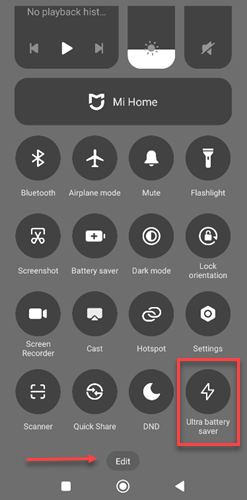
Depending on the HyperOS version and the device model, the view on your device may look different from the screenshot. If the mode has already been used, first enable the accessibility service for the Child Control app on the child’s device again. Information on re-enabling the accessibility service