
Parent App #
What is the Parent app?
Install
Advantages
Automatic login / Save password
Uninstall
What is the Parent App? #
The Parent App is a special view within the web portal. The biggest advantage of the Parent App view is the display of all active devices on one screen. Especially if you manage devices of multiple children, you can see at a glance what happened on which device and for how long - without cumbersome switching back and forth between devices. You can access this Parent App view either in the web portal via the three-dot menu at the top next to the device selection or by installing it as a Parent App. If you install the Parent App on your Android smartphone, you will also receive notifications about sharing or renewal requests.
Install #
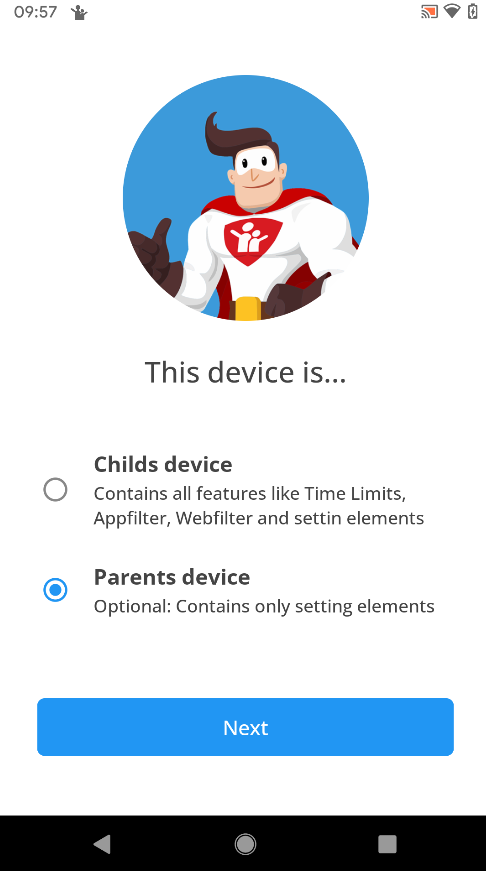
If you have an Android smartphone (or tablet), you can install the Child Control app on your device as a Parent App. To do this, use the same login credentials as on the children’s devices. During the installation of Child Control, select Parent device (instead of Child’s device) in the corresponding step. No licence is required for the Parent App, and it can be installed on as many devices as you want. Information on how to install the parent app on iOS devices (iPhone, iPad).
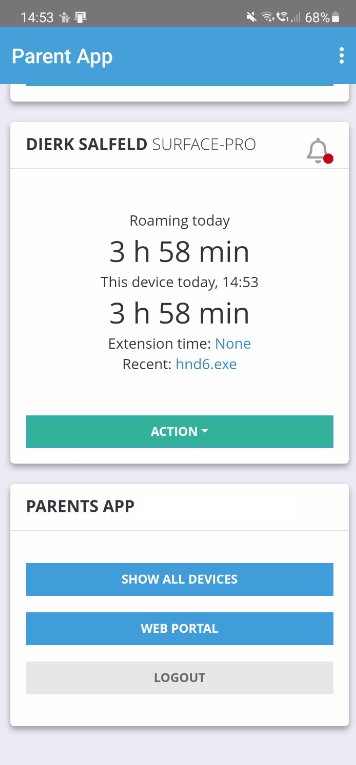
The biggest advantage of the Parent App is the display of all active devices on one screen. Especially if you manage devices of several children, you can see at a glance what happens, for how long, and on which device - no switching between devices using the standard Web Portal required to see different usage logs and settings.
Advantages #
- Overview of all devices with today’s times
- Direct links for extension time, unlocking, locking
- No more (inconvenient) login/password via browser
- Password/login can be saved for quick access
- License-free, unlimited devices
In the Parent App you can see today’s active devices with the time used so far. Upcoming limits are displayed in red letters in the respective card. Use the context menu in the upper right corner of the card to run device-related actions, such as an extension, blocking or unblocking until a given time, as well as a direct link to the Web Portal.
The display refreshes every 1-2 minutes while the app is active and after each power-on.
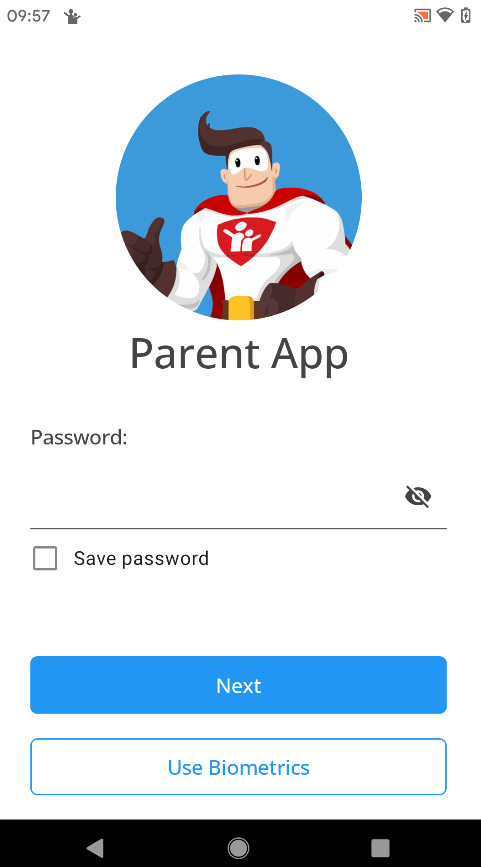
If your children have access to your device as well, please make absolutely sure that you always log out of the Parent App using the Logout button, and that you have not checked “Save password” when logging in (see Automatic login). Remember: anyone who has access to the Parent App can also change all Child Control settings or disable them entirely.
If you are the only one with access to the device, it makes sense to save the password for even faster access.
Automatic login / Save password #
When logging in to the Parent App, you can tick the Save password option. The app will then log you in automatically every time it starts, without asking for your password. Since the login screen no longer appears after that, you can no longer reach the checkbox to clear it again.
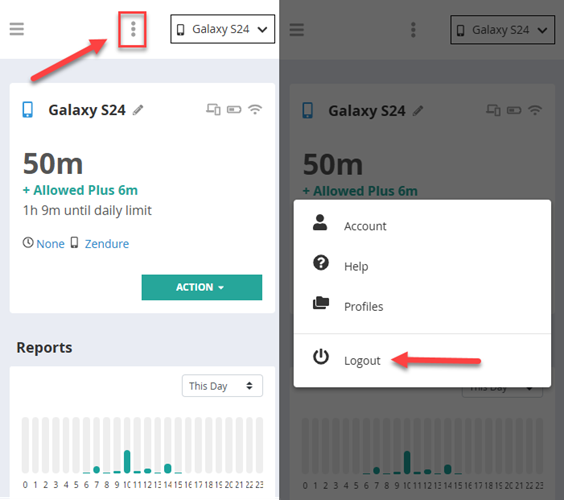
The way back is a single logout: in the Parent App, click the three-dot menu at the top next to the device selection and select Logout. The next time you start the app, it will ask for your password again - and you can decide for yourself whether Save password should be ticked.
If your children have access to your device, it is better not to save the password and to always log out after use.
Uninstall #
Uninstalling the Parent App (unlike the Kids’ version) does not require you to enter your password. You can simply uninstall the Parent App like any other app. On most devices, the easiest way to do this is to long-press the icon and then select Uninstall from the context menu.