
Apps / Programs #
Here you define how Child Control handles individual apps (Android) and programs (Windows): allow them, block them, give them their own time limit, combine several entries into a group with a shared limit, or keep an app available even after the device time has expired. Every entry in the list has exactly one access level.
Please keep in mind that the device limit always takes priority over the app settings: once the total time for the day is used up, allowed apps are blocked as well. The only exception are apps with the access level Allowed PLUS.
App List - the overview
Access levels at a glance
Allowed - default access level
Allowed PLUS - always allowed apps
Allowed PLUS: stop the time counter
Allowed PLUS: Bonus - earning time
Restricting Allowed PLUS
Blocked - deny access to an app
Time limit (for a specific app)
Groups (for multiple apps)
Special groups on Windows
Special Internet group (Windows)
Exclude app(s) from extension
Count in background (Windows)
App List - the overview #
This list shows all apps installed on the Android device. On Windows, only the most commonly used programs are shown for performance reasons - a program is added automatically the first time it runs. On Windows you can also add a program manually at any time via the Add button by entering its .exe name and selecting the desired limit or access level.
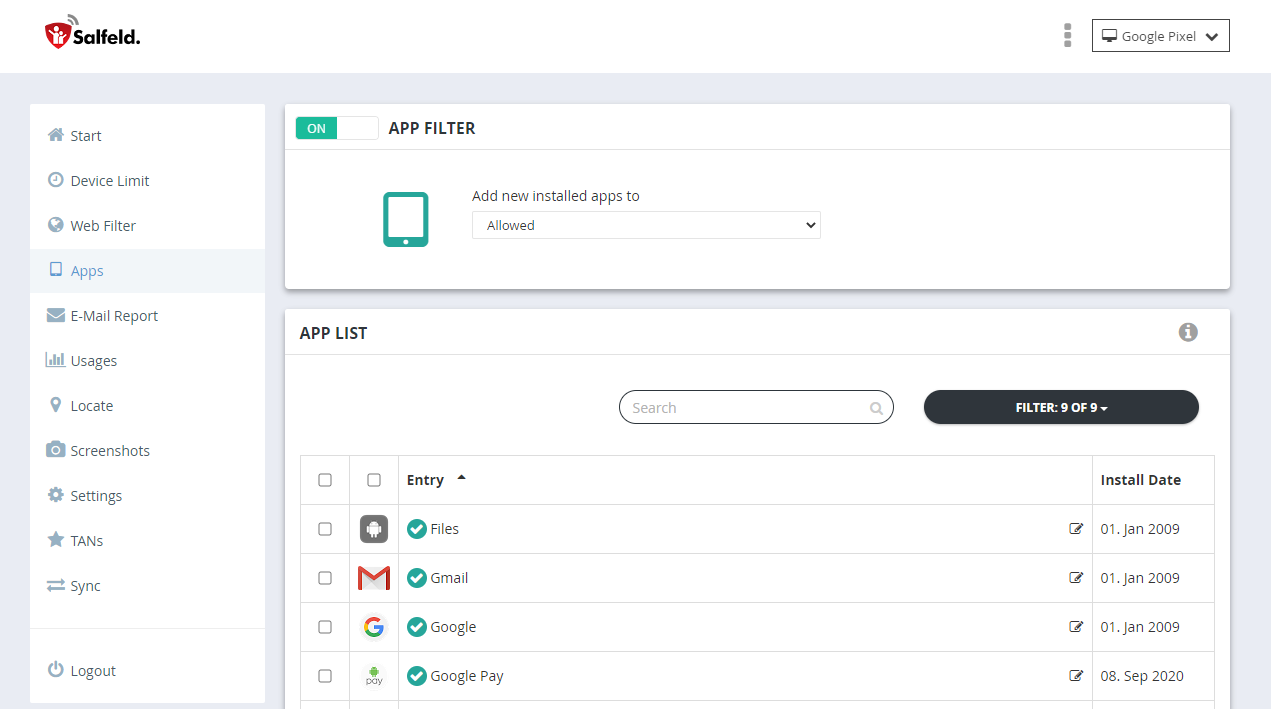
Above the list you will find the setting “Add new installed apps to”. Here you define what happens to newly installed apps and programs: allow them by default, block them, or assign them to a group that has a time limit.
Coloured markers behind the name show the access level of an entry: green for Allowed PLUS, yellow for time limits and groups, red for Blocked. Entries without a marker are simply “Allowed”. The Filter button above the list lets you show or hide individual access levels - that way a single click shows only the always allowed apps, or all members of a certain group.
To change something, select one or more entries and click “Edit selection”. This opens the detail view where you choose the access level and save your changes.
Access levels at a glance #
Every entry has exactly one access level. An app can therefore not be “Allowed PLUS” and have its own time limit at the same time - you decide per app which is more important.
| Access level | What it does | Marker |
|---|---|---|
| Allowed | No restriction of its own, only the device limit applies | none |
| Allowed PLUS | Still available after the device limit has expired | green |
| Blocked | The app cannot be started at all | red |
| Time limit | Its own daily, weekly and monthly limit plus blocked times | yellow |
| Group | Several entries share one common limit | yellow |
On Windows there are also the fixed groups System, Win10 Apps and Internet (see special groups and Internet group).
The same five access levels exist for websites. What is different there is described under access levels for websites.
You choose the access level in the detail view of an entry. Depending on your choice, the web portal shows the matching settings below it - the three PLUS options for Allowed PLUS, or the limits and the blocked times table for Time limit.
Allowed - default access level #
Apps and programs are placed in the “Allowed” access level after installation. This means the app has no time restriction of its own. Please remember that the device limit (Web Portal > Device Limit) takes priority over the app settings: once the device limit has expired, these apps are blocked as well.
This access level is the right choice for everything you do not want to regulate separately. Usage time is counted normally and increases the total time of the device.
Allowed PLUS - always allowed apps #
Allowed PLUS is the access level for apps that may still be used when the total device time is already used up - typically the phone, messages, the alarm clock, timetable apps or learning apps. The same access level exists for websites in the Web Filter.
As soon as you select “Allowed PLUS”, three options appear below. You have to choose one of them, otherwise the entry cannot be saved:
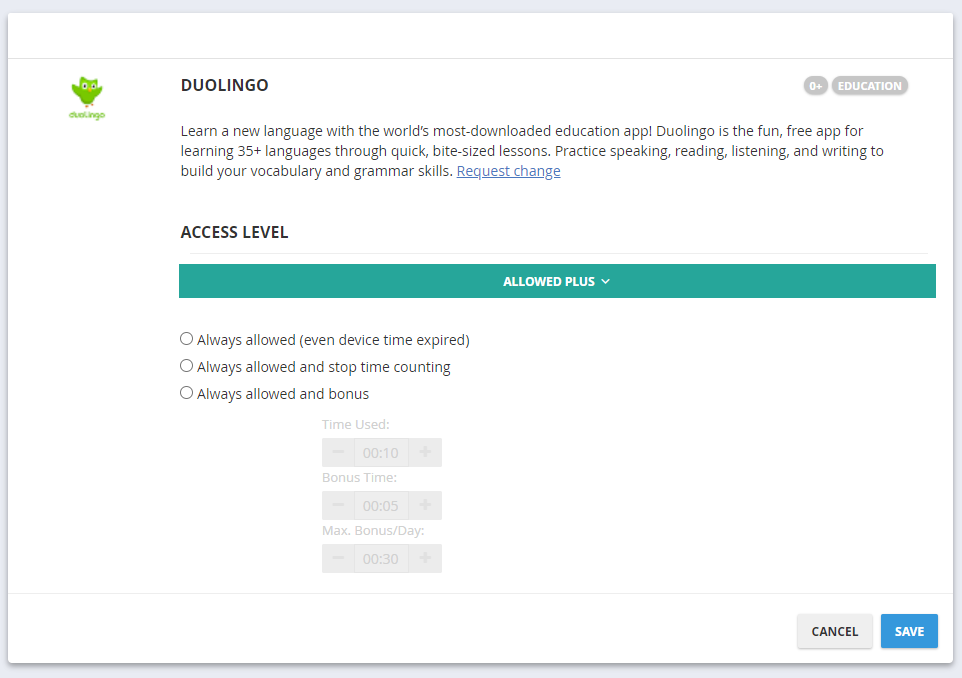
| Option | Device total counter | The app's own time | Extra |
|---|---|---|---|
| Always allowed | keeps running | is counted | - |
| and stop time counting | pauses | is still counted | - |
| and bonus | pauses | is still counted | time voucher |
What all three options have in common: the app stays available after the device limit has expired. The difference is whether using this app still consumes device time (option 1) or not (options 2 and 3) - and whether the child can even earn new time with it (option 3). The two following sections describe this in detail.
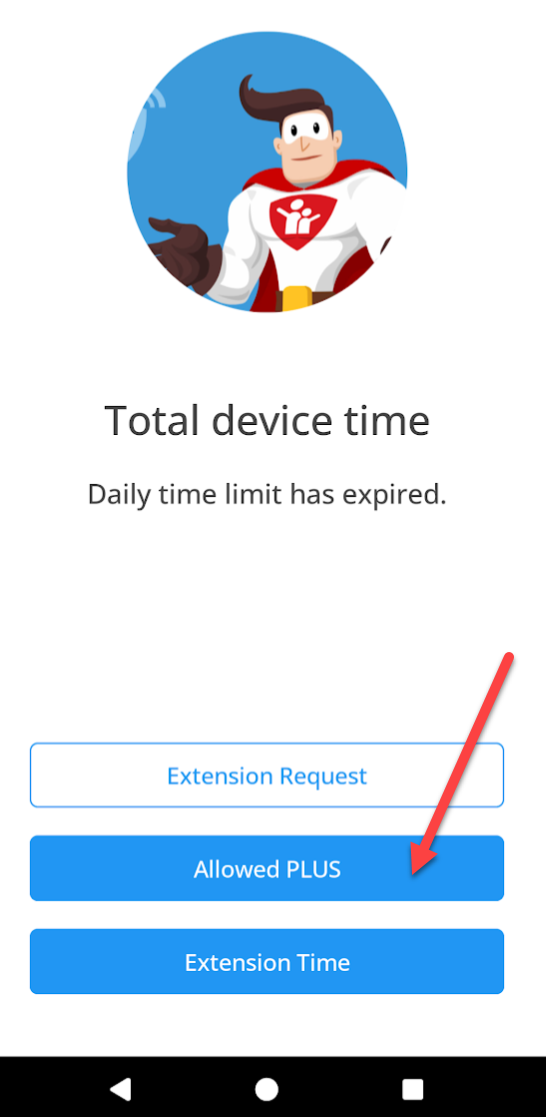
How the child reaches the always allowed apps: once the device limit is reached, the Child Control block screen appears with the button “Allowed PLUS”. Behind it is the list of all always allowed apps, which the child can start directly from there. While the device is still usable, the same list is available in the app under Action > “Show Allowed Plus”:
On Windows PCs this works the same way - here you will find the button on the Child Control block screen:
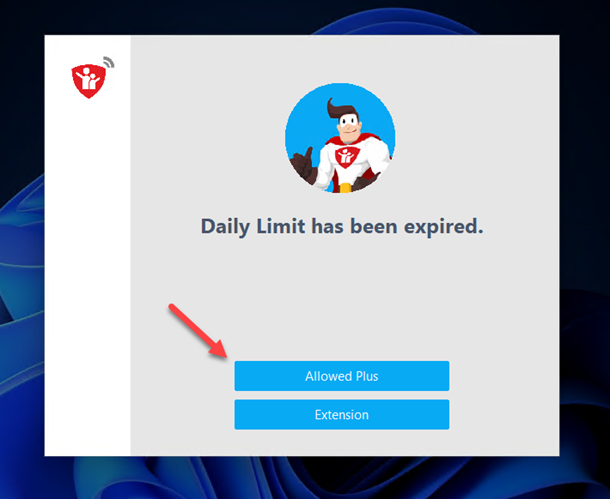
Please note for Windows: always allowed programs can only be started from the Child Control block screen. If you have selected shutdown, log off or the Windows lock screen as the limit reached action, Allowed PLUS is not available.
A side effect that many parents appreciate: while a device limit is active, Child Control discards incoming notifications on Android. Apps with the access level Allowed PLUS are excluded from this - so the family messenger stays reachable.
Allowed PLUS: stop the time counter #
The second option, “Always allowed and stop time counting”, is the most important one in practice: as long as this app is in the foreground, the total counter of the device is paused. Using this app therefore does not consume any device time and does not eat into the daily limit.
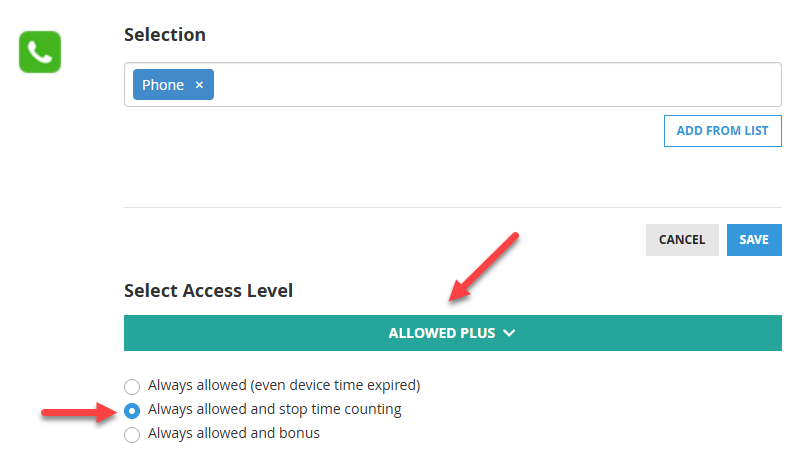
Important: the app still counts its own time. In the reports you can still see how long the vocabulary trainer was used, for example - only the total time of the device does not increase during that period. This is why the usage time of a single app in the report can be higher than the total usage of the device. That is not an error, it is exactly the intended effect of this option. A running extension is not consumed during this time either.
Typical use cases are apps you want to encourage rather than penalise: vocabulary trainers and learning apps, music and podcast apps, the phone, the calendar or a timetable app.
For comparison: if you choose the first option (“Always allowed”), the app is available at any time as well, but it consumes device time as usual. That variant suits apps that should stay reachable without being a reward - the browser for homework, for instance.
Allowed PLUS: Bonus - earning time #
With the third option, “Always allowed and bonus”, you go one step further: on top of the paused total counter, the child earns new time by using this app. You define three values for this:
- Time Used - how long the app has to be used (10 minutes in the example)
- Bonus Time - how much time is credited in return (5 minutes in the example)
- Max. Bonus/Day - the upper limit that can be earned per day in total (30 minutes here)
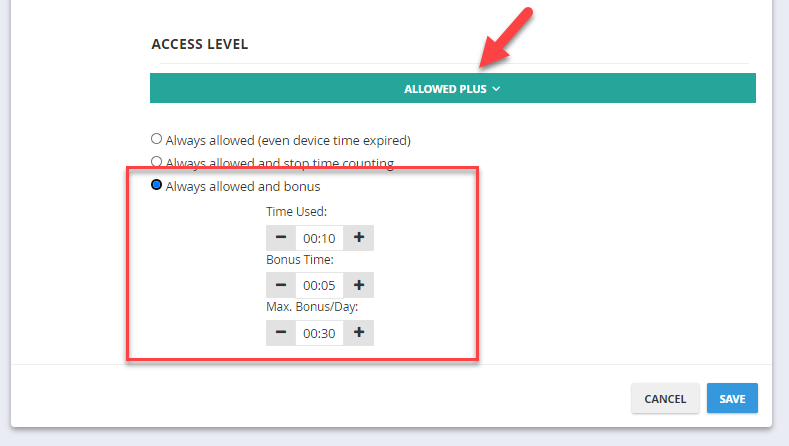
In this example the child is credited 5 minutes of additional device time for every 10 minutes of learning, but no more than 30 minutes a day. The daily cap prevents an app from undermining Child Control by simply “running along” all afternoon.
The credit is created automatically in the form of a Bonus Time Code (see also Time Codes). Unlike a normal time code you do not have to tell it to your child: a bonus time code is visible on the child’s device and can be redeemed there. This is what it looks like on your child’s devices:
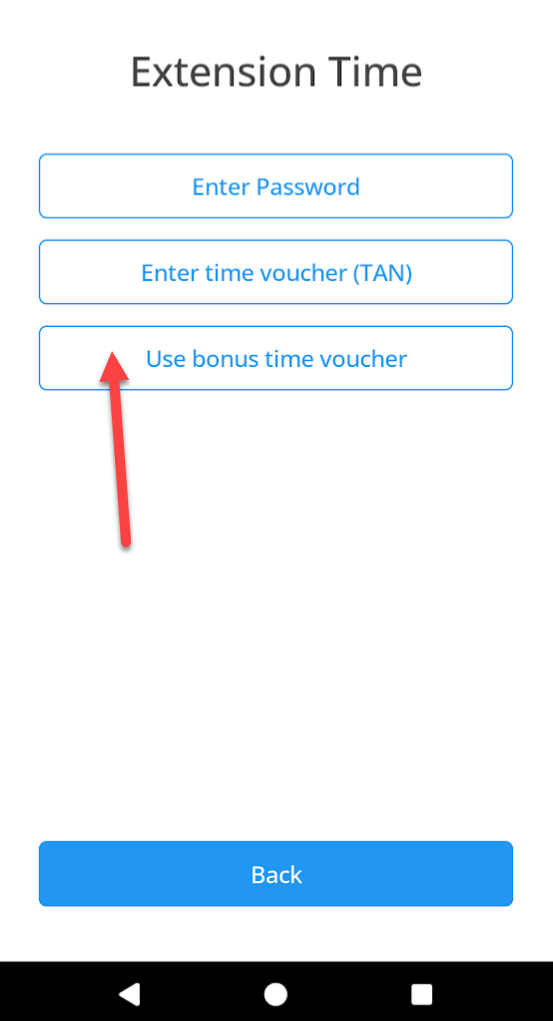
On the Android device the child opens the earned time in the app under Action > “Show bonus time voucher”. If the device limit has already expired, the same option is reached from the block screen via the “Extension Time” button:
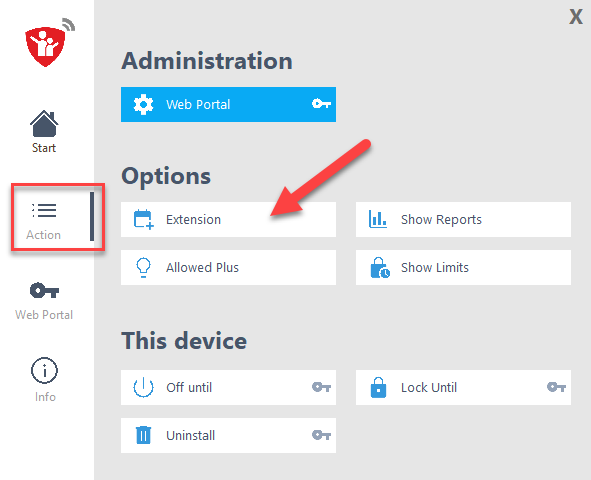
On the Windows PC you will find the same entry in Child Control under Action > Extension. From there the bonus vouchers that have already been earned can be opened and redeemed:
On Android, the child recognises a running bonus app by a green bar at the top of the screen. If that bar covers parts of the screen on your device, you can hide it in the bonus options (depending on the app version you can choose its position instead).
Combined with a tight device limit this results in an effective “first learn, then play”: the child has to earn playing time by using the apps you want it to use. There is also a short introduction including a video in our blog article about bonus TANs (German). How earned time takes effect is described in the chapter Extension Time.
Restricting Allowed PLUS #
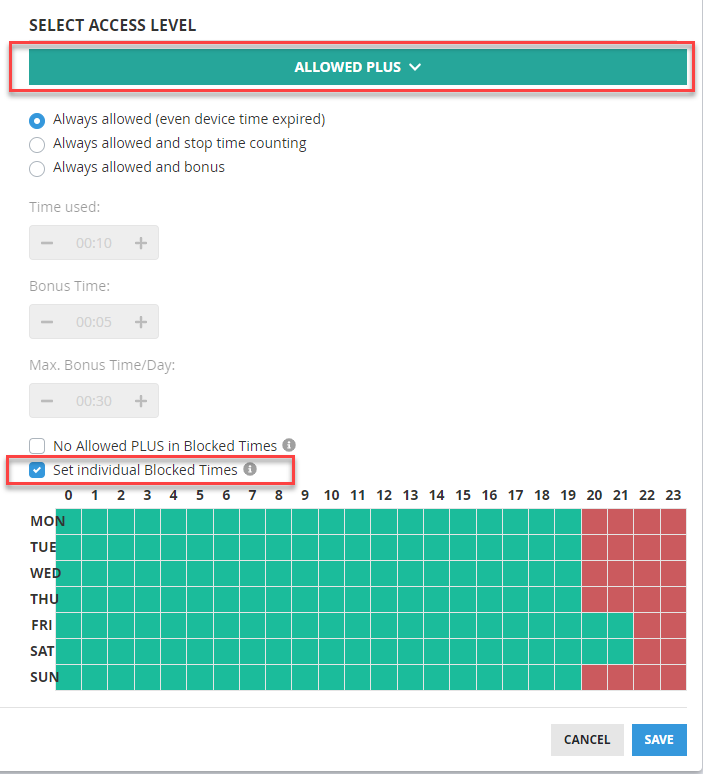
“Always allowed” does not have to mean “around the clock”. Below the three PLUS options the detail view offers two check boxes for this:
Set individual Blocked Times (applies to this entry only): a learning app could be always allowed, but still not after 8 pm. Tick the option and mark the times in the weekly table during which this entry should be blocked (red = blocked).
No Allowed PLUS in Blocked Times (applies to all PLUS entries): with this option, always allowed apps and websites can no longer be opened during the blocked times of the device limit - useful when a certain time of day really means the end. Although the box sits here in the detail view, it works globally, i.e. for all entries with Allowed PLUS. You will therefore find the same setting under Device Limit as well.
Blocked - deny access to an app #
Here you define apps and programs that the selected user is not allowed to run. On Windows such an app is closed again immediately after it was started, while on Android the block screen is placed over it. In both cases the child can send an unblock request, which you receive by e-mail report or in the Parent App.
A blocked app stays blocked even when device time is still available or an extension is running - the block does not depend on any time limit.
Time limit (for a specific app) #
You can assign a specific daily, weekly or monthly limit to an app. Please enter time limits in the format “hh:mm” (hours:minutes) or use the arrow buttons to adjust the settings. In addition you can define blocked times during which the app may not be used. To define blocked times, click the corresponding box in the table to allow (green) or forbid (red) usage.
Blocked times can be set in 15-minute intervals. To do so, right-click the box you want (on a mobile device: press and hold the box) and select the appropriate time.
An app limit always applies in addition to the device limit: both limits have to be met. If the daily limit of the device is reached, an app with remaining time will not help either.
Groups (for multiple apps) #
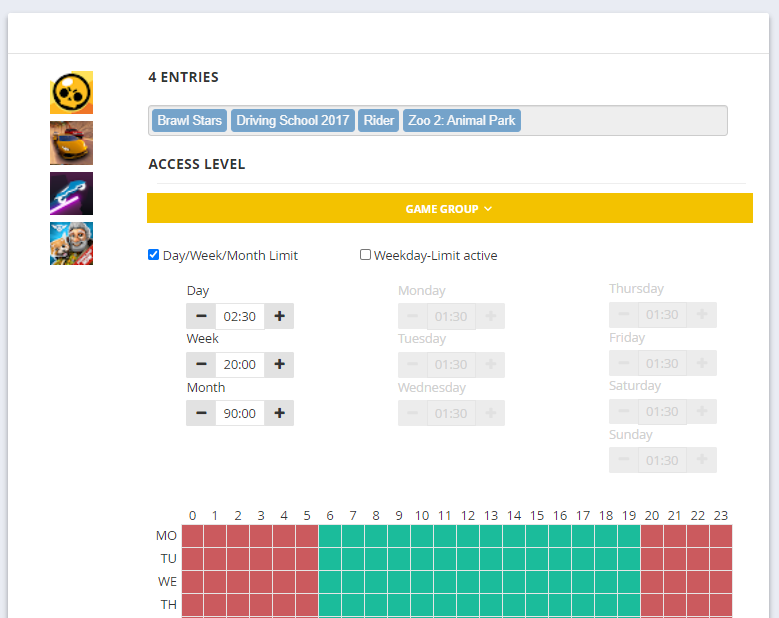
A group combines several apps or programs under one shared time limit. The advantage is that, for example, all games can be combined into a single group. The group time increases whenever any game or application of this group is running. If several apps of the same group are running, the time is still counted only “once”. When the limit is reached, none of the entries in the group can be started any more.
To combine several apps into a group, select the entries and click the “Edit” button. In the following window you choose a group and define its limits. Five groups are freely available and can also be renamed (e.g. “Games” or “Social media”):
Special groups on Windows #
On Windows, in addition to the five groups you can manage yourself, there are a few more groups. By default, the System group and the Win10 Apps group manage Windows internal programs as well as the Windows UWP apps. If you want to set a limit for a program or app of these groups, you have to choose a different access level for it.
Special Internet group (Windows) #
On Windows there is also the Internet group, where you can set time limits as well. Please note that the Web Filter is applied to the members of this group. Avoid games in this group, as some games have problems with the Web Filter. Ideally this group contains all browsers available on the system (e.g. Chrome, Edge, Firefox). If you use a special browser, it has to be added to this group for the Web Filter. The name of the “Internet” group is fixed and cannot be changed.
Exclude app(s) from extension #
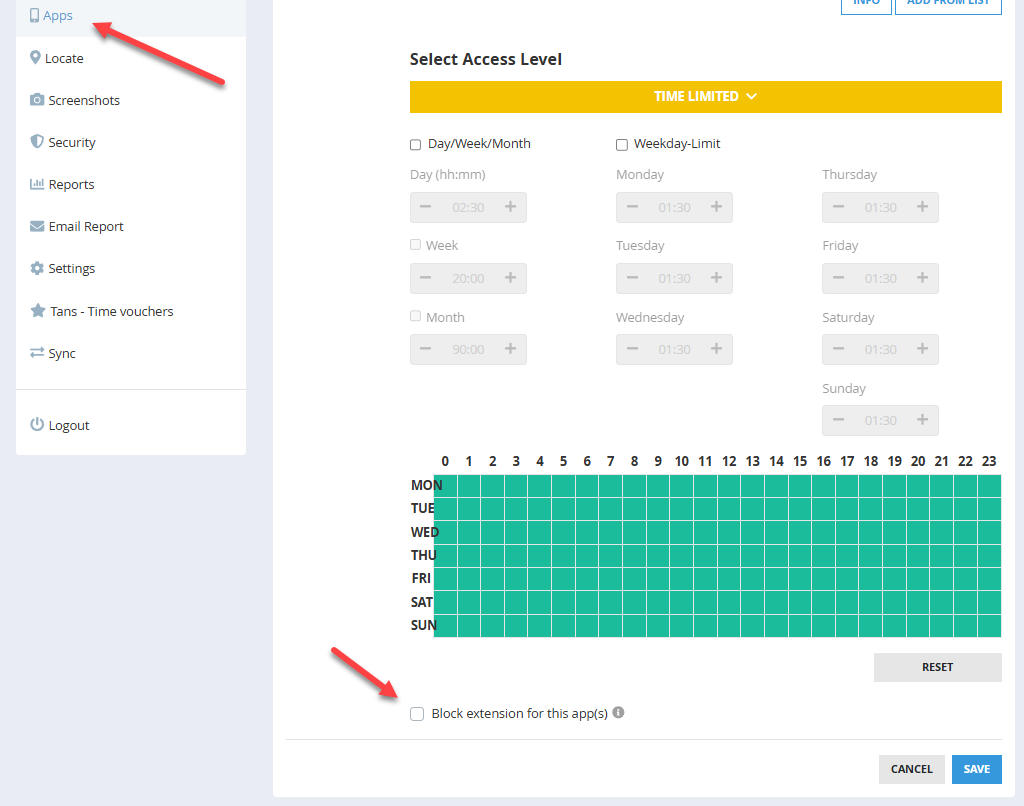
In the detail view you can select the access level Time limit or Group for individual apps and block extensions for these apps at the bottom of the time settings. That way a game stays blocked even if you have granted the child another half hour of device time. See the screenshot below:
Count in background (Windows) #
By default, Child Control only counts the times for the current app in the foreground, i.e. for the app (or program) that currently has the input focus. Select the option “Count also in background” if you want to count the usage time of an application even when it is not in the foreground. If this option is active and the corresponding exe file is running for the selected user in the Windows task manager, the time is also counted in the background. Limits are of course also observed and enforced in this case.
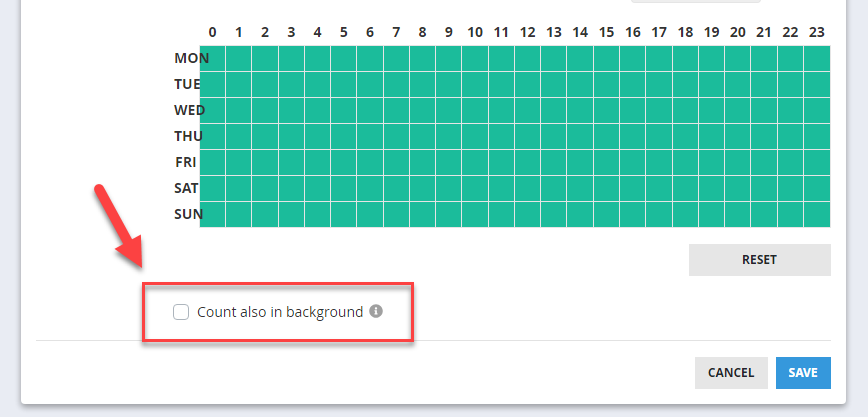
Note that it is often not obvious to the user when an app is still running in the background. Closing a single browser tab does not necessarily mean that the browser has been closed. In current Windows versions you can see whether the application is still running by the small marker below the taskbar. Important: if you apply this option to browsers or to the Internet group, it overrides the settings for Allowed PLUS domains (see chapter Web Filter). This means that you cannot stop the counter or grant a bonus for domains. Background counting takes precedence over Allowed PLUS domains.