
Device Limit #
In this section you can set time limits and blocked times for the device. The limit controls how long the Windows PC or Android device may be used - per day, week, month, or by day of the week. Blocked Times are fixed periods when the device cannot be used at all.
Overview #
Using the Device Limit
Combination of (time) limits
Limit reached action
Forced Breaks
Audio Limit (Android only)
Lock/unlock for given time
Allowed Plus apps
Using the Device Limit #
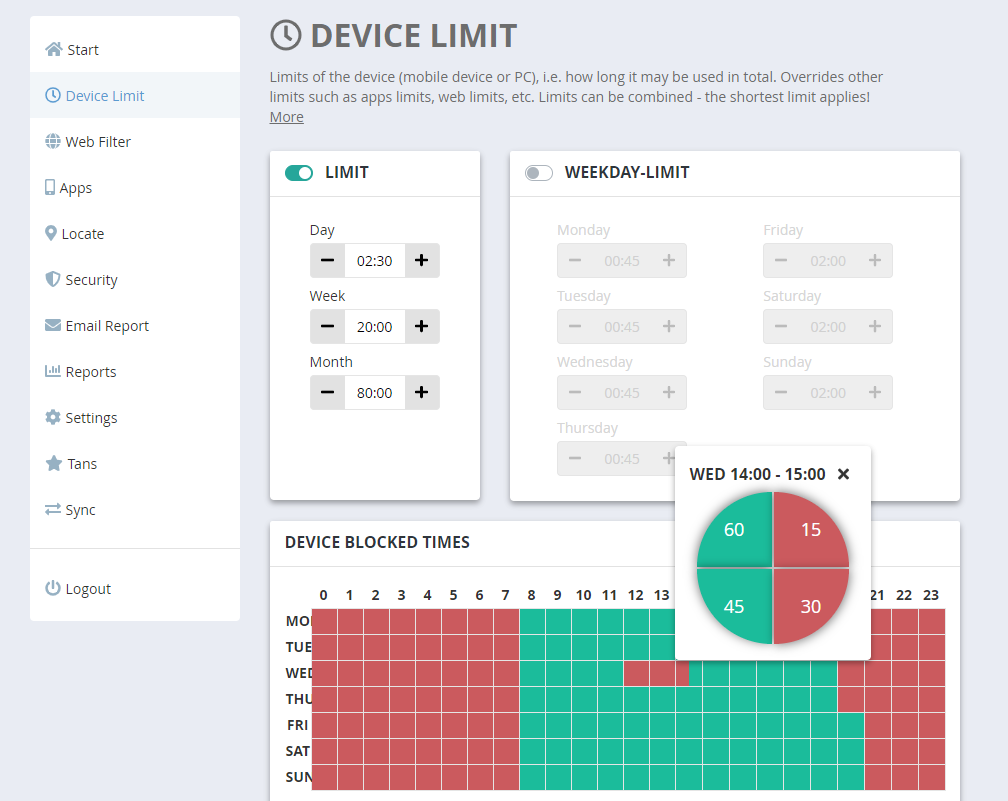
Time limits: Enter a time limit in the format hh:mm (hours:minutes), or use the arrows to adjust. You can set limits per day, week, or month - or define different limits for each day of the week. The child is warned before a blocked period begins (see Settings
Warnings).
Blocked times: Click a box in the timetable to toggle it between allowed (green) and blocked (red). Hold the left mouse button and drag to mark multiple boxes, then right-click to apply. Use the “Reset” button to clear all selections. Tip: Right-click a single box to set blocked times with quarter-hour precision.
The limits here apply to overall device usage time. The same limit types are also available for Internet time, apps, and web pages in their respective sections.
Combination of limits #
The shortest limit always applies. You can combine limits freely - for example, a maximum of 7 hours per week, but no more than 1:30 hours on any single day. Once the weekly quota of 7 hours is used up, the device is blocked regardless of the daily limit.
If you only want a weekly cap with no daily restriction, set both the daily and weekly limit to the same value (e.g. 10:00h each).
Limit reached action #
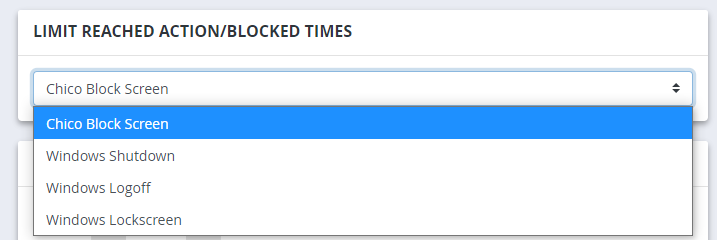
While the Child Control block screen always appears on Android devices after a total limit has expired, you have a choice on Windows systems. Here, in addition to the Child Control block screen, you can also choose the Shutdown, Logout, and Windows lock screen options. Please remember that only apps that are always allowed (Allowed PLUS) can be started from the Child Control block screen.
Forced Breaks #
You can require a mandatory break after a set period of use. When the break starts, a block screen appears showing when the device can be used again. You can optionally allow extensions during breaks. (Windows: these settings are under Device Limit > Special Limits.)
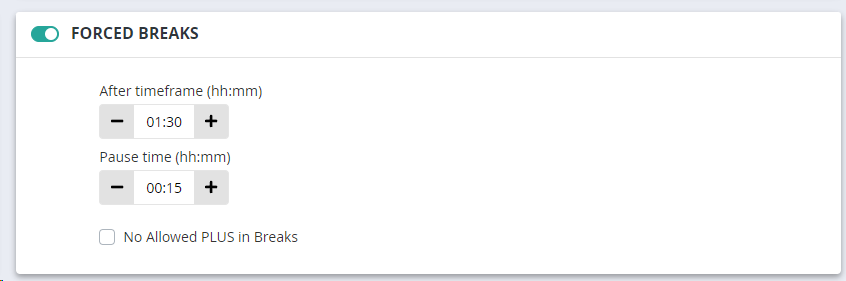
No extension during the break! Any active extensions are paused during a break and resume afterwards.
Apps set as “Allowed” with the “Counter Stop” or “Bonus” option are excluded from the break counter. Check “No Allowed PLUS in Breaks” to block all apps during a break.
Voluntary breaks are recognised by the system. Example: After 1 hour of use, a 30-minute break is required. If the device runs from 12:00 to 13:00, the break applies from 13:00 to 13:30. But if the device was only used from 12:00 to 12:30 and switched on again at 13:00, the break is not due until 14:00 - the system counts the gap from 12:30 to 13:00 as a break already.
To reset the break counter, disable the break function and re-enable it after a sync (about 3-5 minutes). Alternatively, reset all counted times under Reports.
Audio Limit (Android only) #
Audio playback is a special case. You can apply a time limit to an audio app like Spotify, but this only takes effect when Spotify is in the foreground - which is usually not the case during music playback. Audio can also play while another app is in the foreground, or while the device shows the home screen.
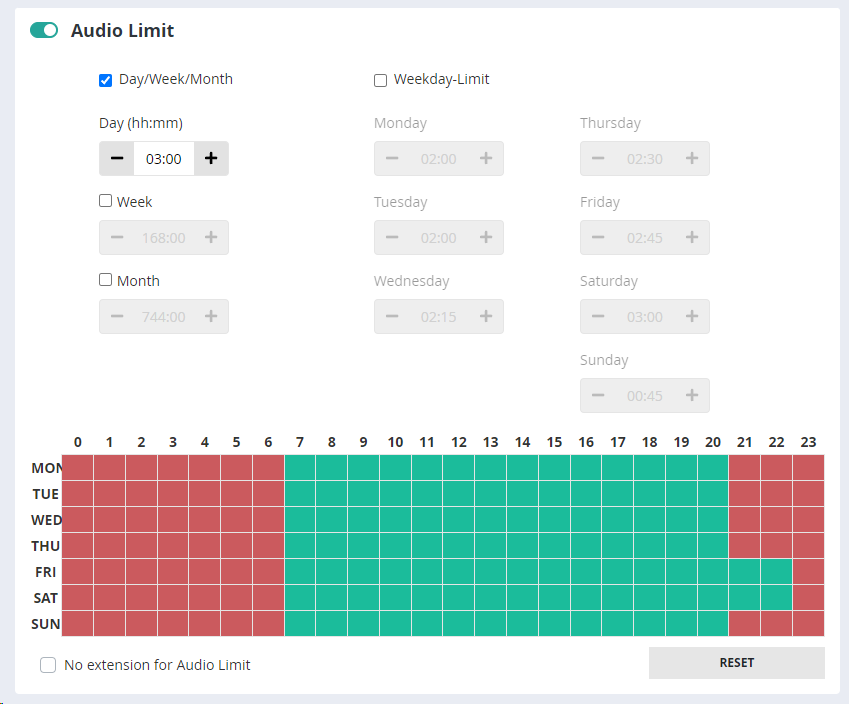
Technically, Child Control cannot detect which app is producing sound, only that sound is playing. For this reason there is a separate Audio Limit, independent of the overall device limit. It can restrict total daily, weekly, or monthly audio output, or block it during specific time periods. Extensions work the same as for other limits. Enable “No extension for sound limit” if you don’t want current extension time to apply to audio. The phone’s ringtone and alarm are not affected.
Note: Because the source of sound cannot be identified, the audio limit also counts sound from games or educational videos. Use this limit with care.
Time Codes/Roaming #
With Time Codes you can assign extra screen time to a 6-digit code that your child can enter on the device. Use Roaming to count time across multiple devices.
Lock/unlock until a given time #
Use this function to completely lock or unlock the device until a specific date - for example, during exam periods or holidays.

This setting overrides all other time limits - if you unlock, no other limits apply; if you lock, available time cannot be used. Select the option and enter the corresponding date.
Allowed Plus apps #
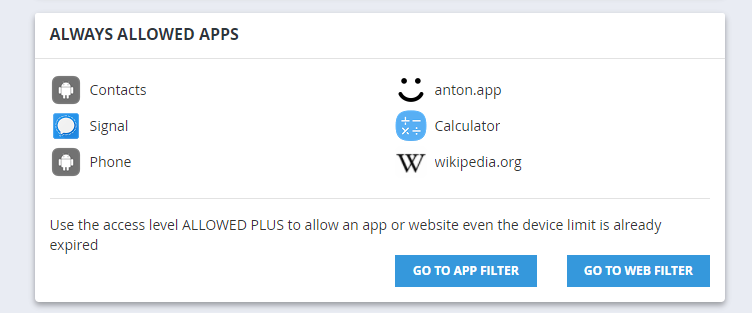
Here you can see a list of your Allowed Plus apps. How to permanently allow apps and programs (even after time expiration) is explained under Always allowed apps. Use the Web Filter with access level Allowed PLUS to always allow specific websites.