
Email Reports #
Setup
Report options
Unlock/Extension requests
Security notice
Setup #
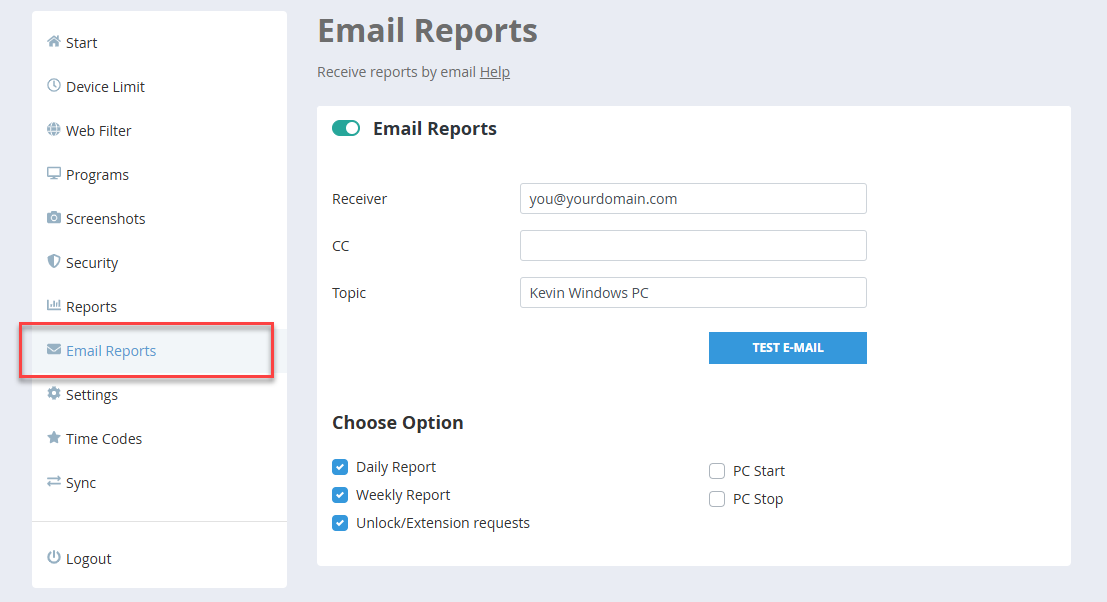
Enter the email address you want reports sent to in the “Receiver” field. Use the “CC” field to send reports to a second address as well - useful if both parents want to stay informed. You can also customise the email subject line via the “Topic” field.
Before activating email reports, click “Test E-Mail” once to make sure your settings are correct and emails can be delivered. Check your inbox for the confirmation.
Report options #
Under “Choose Option” you select which events should trigger an email:
Daily Report: A summary of the previous day’s device usage is sent each morning. If there was no activity the day before, no email is sent.
Weekly Report: A summary of the previous week is sent at the start of each new week (Monday). In Child Control, the week always starts on Monday. If there was no activity in the previous week, no email is sent.
Reports are user-specific - if you have multiple children or devices, a separate report is sent for each one.
PC Start / PC Stop: You will receive an email each time the monitored Windows PC is switched on or off (Windows only).
Unlock/Extension requests #
If the option “Unlock/Extension requests” is enabled, you will receive an email as soon as your child sends an unlock or extension request from the device. You can then approve or decline the request in the Web Portal or via the Parents App. Requests are automatically deleted after 8 hours if not acted upon.
Security notice #
At the bottom of the Email Reports section you will find an additional security option: you can enter an email address to receive a notification with every successful Web Portal login. This lets you notice immediately if someone else is accessing your account.