
Security #
Use the Security section to make additional security settings for the selected device. Settings differ depending on whether it is an Android or Windows device.
Security Android
Security Samsung
Advanced Security (Android)
Security Windows
Security Android #
On Android devices you can select several options to increase security and reduce cheating. Note that device manufacturers can customize Android, so some settings may not work as expected on all devices.
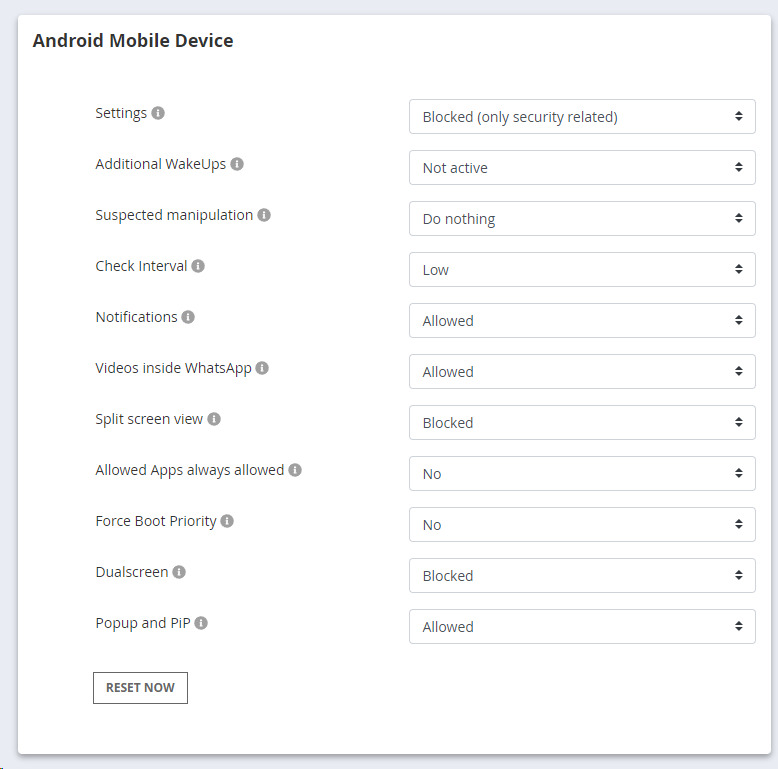
Settings The Settings app allows system changes such as adjusting the date or battery-saving programs. You can choose to not lock settings at all, lock only security-related areas, or lock them completely - useful if the child has tried to manipulate the app via the settings.
Additional WakeUps The additional wake-ups regularly check whether the internal background service of Child Control is still running and restart it if necessary.
Suspected Manipulation Suspicious actions (such as changing the date/time) can be partially detected by Child Control. The device can then be blocked automatically for a defined period. The block works like the “Block until” function and can be revoked at any time - directly on the device or via the Web Portal.
Check Interval The check interval defines the time period in which banned apps should be checked. The default setting Moderate corresponds to one second and can be increased for powerful devices.
Notifications
Here you define whether Android notifications should be suppressed when a Device Limit has expired - or always. This is useful because some notifications allow interaction (e.g. replying to WhatsApp) without the app being in the foreground.
For this to work, Child Control needs explicit notification access. This is not active by default. To enable it: on the device, go to Settings > Apps > Special access. On many devices this is in the top-right three-dot menu. Under Special Access, select “Notification Access” and enable the switch for Child Control.
Videos inside WhatsApp YouTube videos can be played directly inside WhatsApp, even if the YouTube app is blocked. Time is then counted for WhatsApp rather than YouTube. Use this setting to disallow video playback inside WhatsApp.
Allowed apps always allowed When a device is blocked via Actions > “Block until”, Allowed PLUS apps are also inaccessible by default. Enable this setting to keep Allowed PLUS apps accessible even during a manual block.
Force boot priority Tries to make the app’s background service load and start as quickly as possible when the device reboots. Unfortunately, this feature is not supported by every device.
Dual Screen Some devices can display two apps at once (split screen). Child Control can only count the active foreground app, so time counting is inaccurate in dual-screen mode. Enable this option to prevent split-screen display.
Popup and PiP Some manufacturers allow apps to appear in a small floating window over other apps. This can also cause incorrect time counting. Select this option to prevent popup/PiP display.
Samsung Security #
On Samsung devices, additional system-level restrictions can be applied. Since these are enforced by the Samsung system - not the app - use them with caution. Some settings could lock you out of the device.
Prerequisite for these settings is the one-time confirmation of the Knox License on the child’s device.
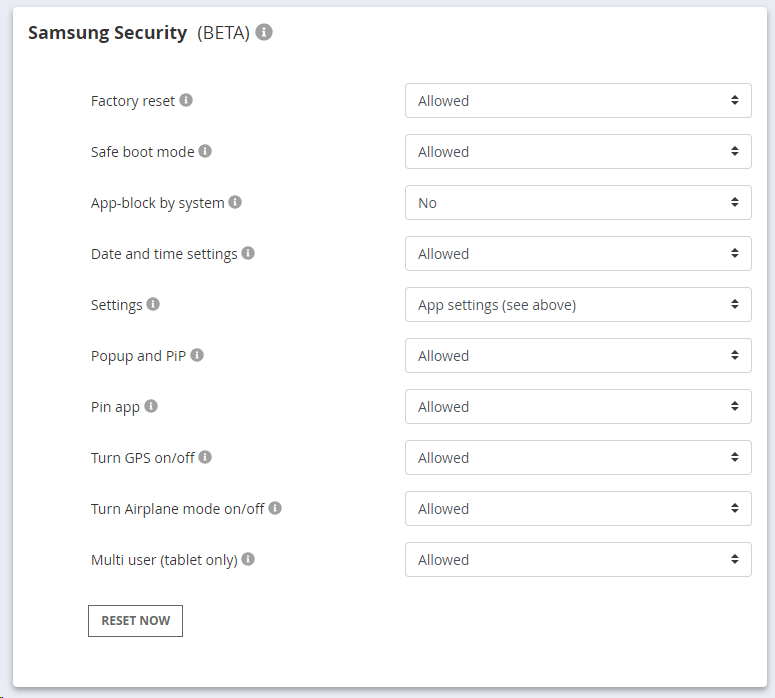
Factory Reset When Blocked is selected, resetting to factory settings is no longer possible. This restriction also remains in Safe mode.
Safe boot mode If Blocked is selected, it is no longer possible to start the device in Safe mode. In the (rare) event of an error, you may no longer be able to start the device.
App block by system Select “YES” to have the Samsung system additionally block unauthorized apps when a limit expires. Also recommended if manipulation is suspected (e.g. through always-allowed apps).
Date and time settings If Blocked is selected, changes to the date and time are prevented by the system. Before setting this option, please check directly on the child device whether the date and time are correct.
Block Settings With “App Settings”, the defaults from the Android Security section above apply. With “Blocked by OS”, the device settings (WLAN, Bluetooth, etc.) are locked by the system itself. This can only be lifted by resetting this setting here in the Web Portal.
Block Popup and PiP Prevents Samsung devices from displaying content in multi-window mode (picture-in-picture) and also disables the pop-up view.
Pin app Prevents the “Pin this app” system function. A pinned app can cause the Child Control block screen to not display correctly. We recommend blocking app pinning. Note: if you re-allow this later, pinning must also be manually re-enabled in Android settings.
Force GPS always on Select Yes to always enable GPS on the child device and prevent disabling it. A location deactivation of single apps is not affected.
Disable Airplane mode Select Yes to disable flight mode settings for the user. If flight mode is required (e.g., on an airplane), the device must be turned off completely in this case.
Multi user (tablet only) Samsung tablets support multiple users and a guest account. Switching to another user can bypass Child Control. Set to Blocked to prevent creating or switching to other users.
Advanced Security (Android) #
Advanced security lets you block individual content within a specific app, based on its title. While an app block always affects the entire app, here you keep the app allowed and block only certain content inside it. For example, you can block a single entry in the Settings, a particular show in a media library, or a single menu item within an app - without banning the app as a whole.
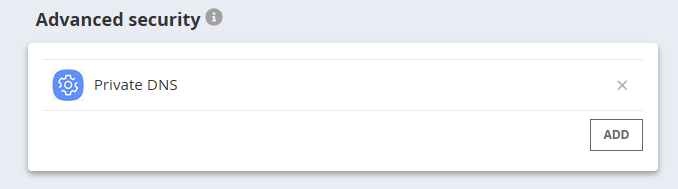
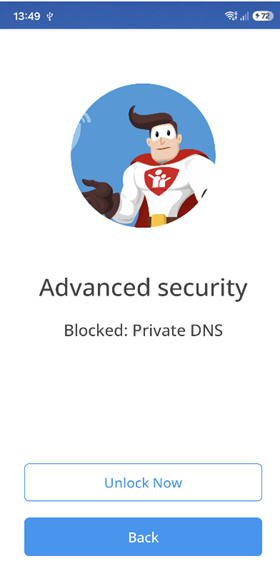
How it works First select the app in which content should be blocked, then enter the title (the keyword) to block. As soon as exactly this title appears in that app on the child’s device, Child Control blocks the device and shows the “Advanced security” notice together with the affected keyword. You can store any number of titles per app.
Mind the exact spelling The title you enter must match the text shown on the device exactly (including upper- and lowercase). This is not a search for parts of words, but an exact match. It is therefore best to enter the title exactly as it appears on the child’s device.
Windows Security #
Set various restrictions for your Windows system. Note: these settings do not affect Child Control’s internal security - even an admin cannot terminate Child Control processes via the Task Manager. The available restrictions:
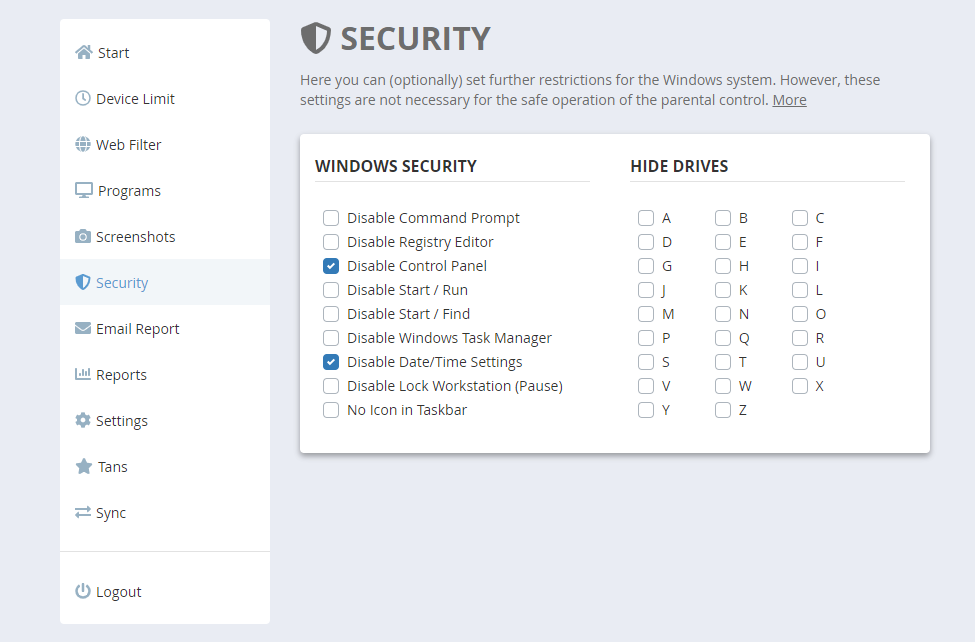
Disable Command Prompt Prevents access to MS-DOS and the command prompt. Also, pure DOS programs or batch files from Windows are no longer executable. Choose this point as well if you want absolute system security.
Disable Registry Editor Prevents calling the Registry Editor (REGEDIT). Since Child Control also stores some of your data directly in the Windows registry, this setting significantly increases your system security.
Disable Control Panel Denies access to the Control Panel via the Start menu. The user can no longer uninstall software, add Windows components, and similar actions.
Disable Start/Run Prevents launching programs via the Run dialog, Explorer address bar, or Task Manager. The user can still open files by navigating to them manually in Explorer.
Disable Start/Find Hides the “Search” entry from the Start menu and Windows dialogs, preventing direct file searches.
Disable Windows Task Manager Locks the Task Manager. CTRL+ALT+DEL can no longer be used to terminate programs. Use this if you suspect the parental control is being bypassed.
Disable Date/Time Settings Blocks access to the Windows system clock. Note: the BIOS clock can still be changed - assign a BIOS password for full protection. This setting only takes effect after a full restart or logout (not just a user switch).
Disable Lock Workstation (Pause) Prevents the Windows native lock screen from being triggered via WINDOWS+L or via the Child Control taskbar icon context menu.
No icon in the taskbar Hides the Child Control taskbar icon and all warning messages. The child cannot see how much time remains. Blocked websites simply fail to load without explanation. Use this to run Child Control invisibly in the background.
Hide drives Lists all active drives (including network connections). Select drives to hide them in Explorer. Note: they are only hidden - direct access via a known path is still possible.
Tips for unwanted drive starts: To prevent games launching from a CD-ROM drive, define the allowed programs in the Programs section and enable “Allow only these programs”. To decide what to allow, run Child Control without restrictions for 2-3 weeks first - the logs will show exactly which files were run.
What to do in case of problems? If not all security settings can be applied, this usually happens when the Windows user profile is currently in use or has never been logged into. Make sure every new user has logged in to Windows at least once. Problems can also occur if the user is logged in “in parallel” - use “Log off” instead of “Change user”.
In very rare cases a corrupt Windows user profile is the cause. In that case: temporarily make the user a computer administrator, restart, log in as that user, open Child Control in that account and apply the restrictions there. Then log out, log back in as yourself, and revoke the admin status.