
Start, Menus and Actions #
Start page
Navigation menu
Device selection
Options menu
Detail view
Device Overview
Actions
Status
Start page #
When you log in to the Web Portal, you will land on the start page. This shows the device card of the most recently used device with today’s usage time and links to the various settings.
Navigation menu #
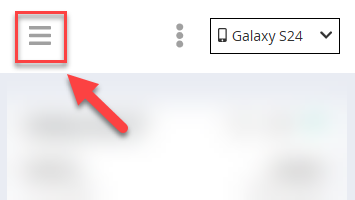
On the left you will find the navigation menu, which gives you access to all areas of the Web Portal - for example Device Limit, App Filter, Web Filter or Reports. On a smartphone this menu is accessible via the hamburger icon at the top left. The individual sections are explained in the following chapters.
Device selection #
At the top right you will find the selection menu for your devices. Here you switch between the individual devices on which Child Control is installed. You can also access the Device Overview (all devices at a glance) from here - select the entry “Device Overview”.
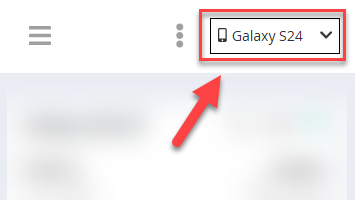
If a device is missing from the selection, make sure that Child Control has been installed and set up on that device using the same account.
Options menu #
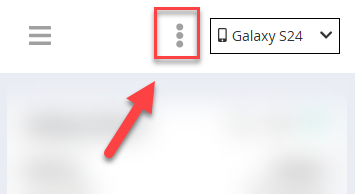
Directly to the left of the device selection you will find another menu with advanced functions that do not relate to a single device. More about this in the Extras chapter.
Detail view #
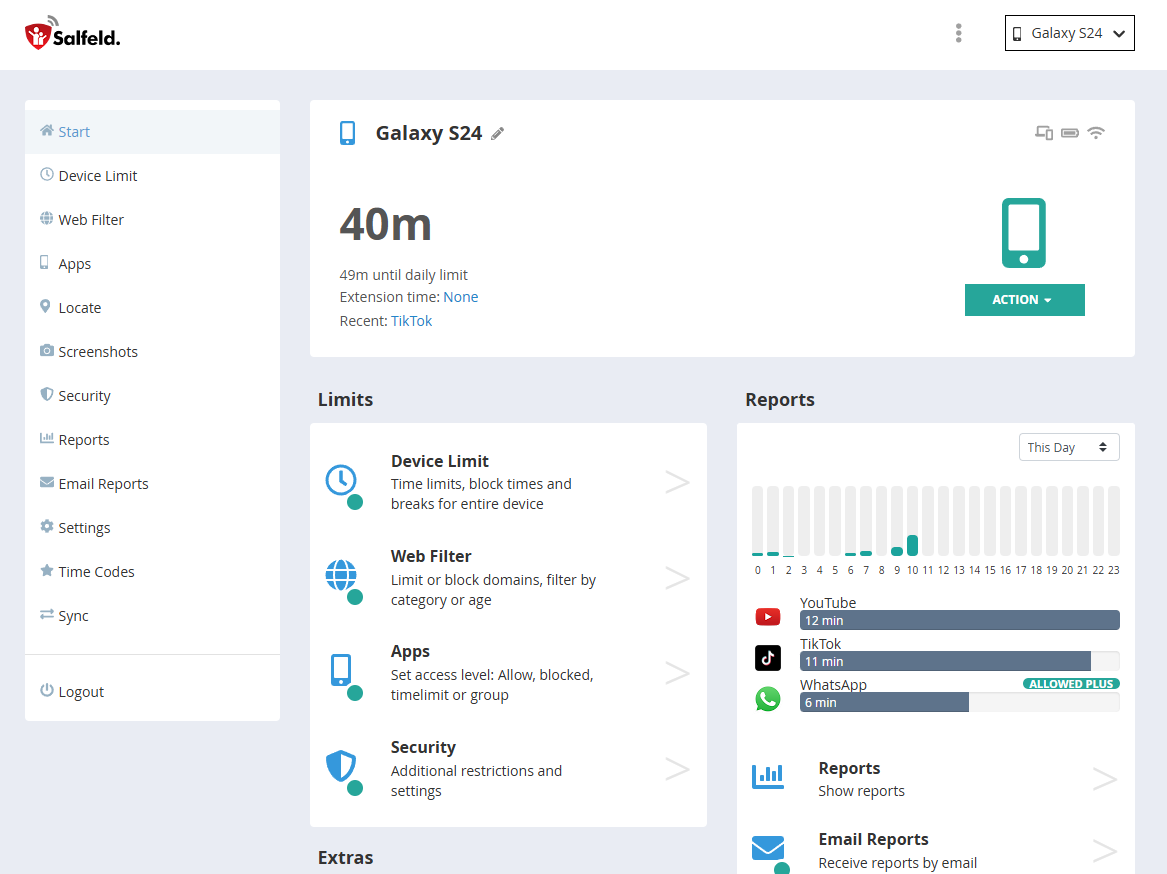
The detail view is the default view of the Web Portal. After logging in or selecting Web Portal within the Parents App, you will always land here - in the view of the most recently used device. Switch to a different device using the device selection at the top right.
The device card shows today’s usage time and - if a limit is set and less than 8 hours remain - the remaining time. Below that you can see the most recently used app, a current extension time and a note if Roaming is active. The Wi-Fi symbol shows whether the device is online (green), offline (grey) or has a sync issue (red). A warning triangle indicates a technical warning (red) or an open unlock or extension request (yellow).
Device Overview #
The Device Overview shows all your devices as compact cards in a list. You can access it via the entry “Device Overview” in the device selection at the top right. Click on a card to open the detail view of that device.
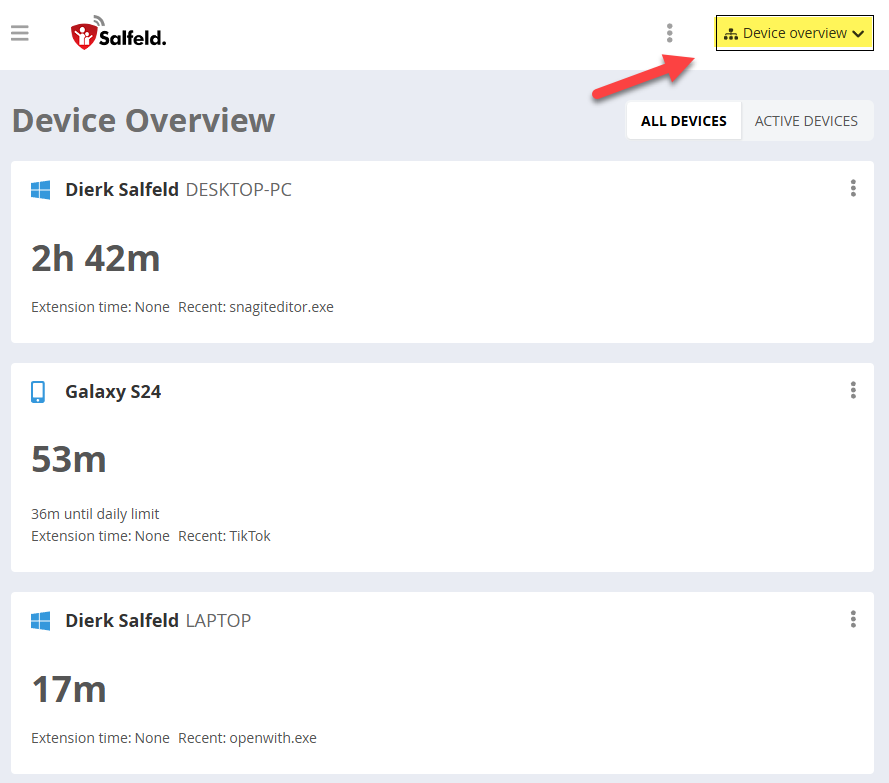
Use the filter at the top to switch between all devices and only the devices active today (“Active devices”). Set the sort order (by usage time or by device name) at the bottom.
Each card has a kebab menu (⋮) on the right for quick actions without switching to the detail view - see the Actions section below.
Actions #
Various instant actions are available for each device:
- In the Device Overview via the kebab menu (⋮) on the respective card
- In the detail view via the “Action” button
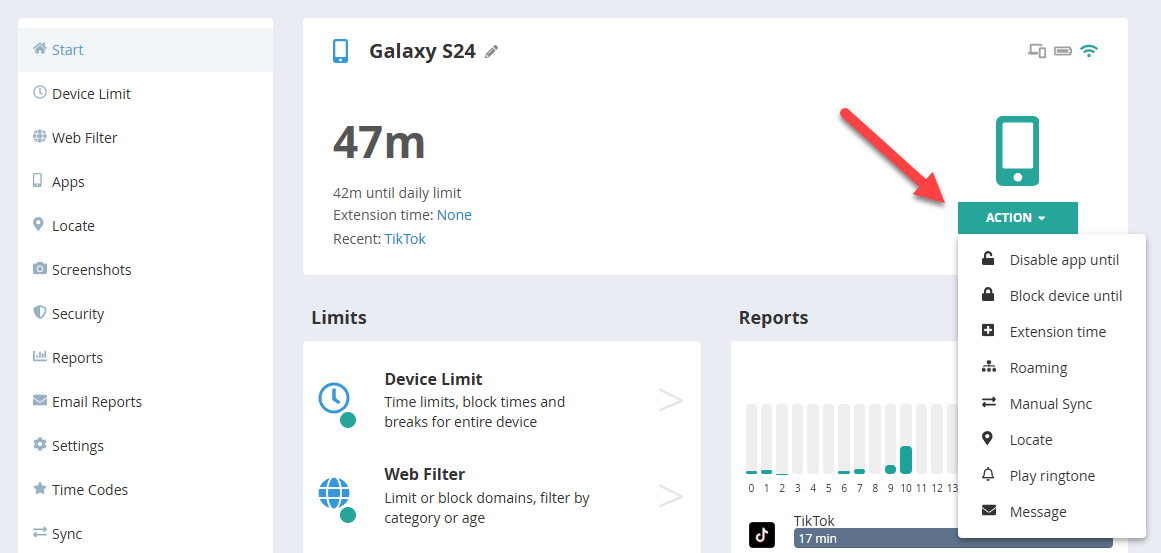
The following actions are available - depending on device type and online status:
Extension time: Grant or remove additional usage time for today.
Disable app until: Temporarily disable monitoring, e.g. during holidays.
Block device until: Block the device immediately until a specific time.
Add time manually: Manually add time for past periods.
Roaming: Open Roaming settings.
Manual Sync: Trigger synchronisation immediately.
GPS / Location: Retrieve current location (Android only).
Play ringtone: Play a ringtone on the device (Android only).
Shutdown: Shut down the device (Windows only, only when online).
Screenshot: Take a screenshot (Windows only, only when online).
Message: Send a text message to the device (only when online).
Status #
The device card shows different information depending on the situation.
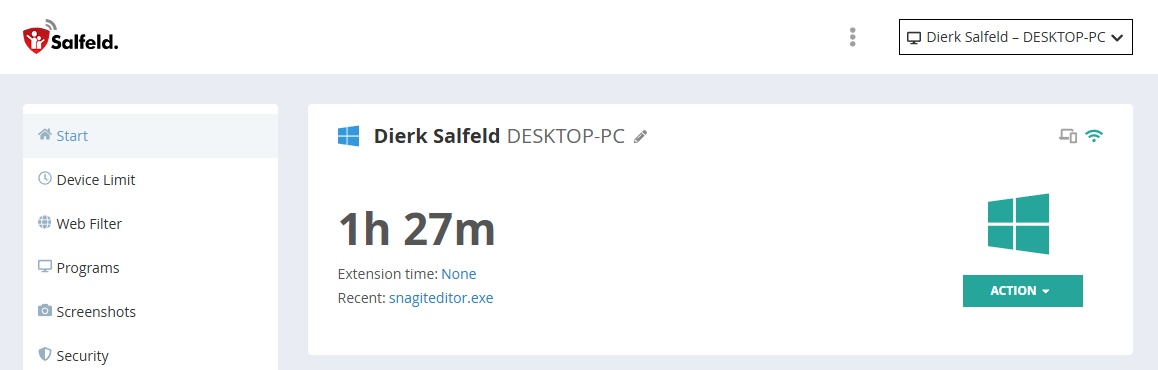
Normal state: In normal operation you will see today’s usage time. If a limit is set and less than 8 hours remain, the remaining time is also shown. Below that you can see the most recently used app, a current extension time and a note if Roaming is active.
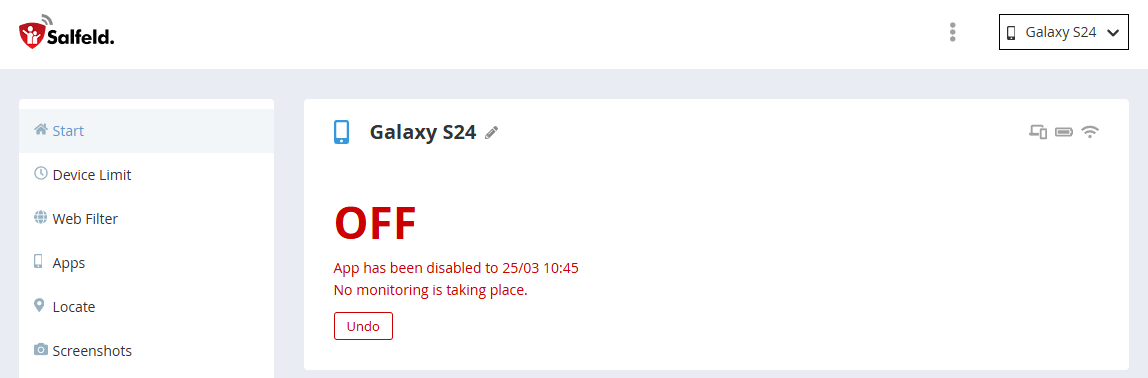
OFF: Child Control has been temporarily disabled - this means: the app is completely out of operation. No time tracking or monitoring takes place. The device itself is not blocked and the child can use it normally. The card shows until when the deactivation applies. Use the “Undo” button to re-enable Child Control immediately. This function can only be activated on the device with the parental password. Child Control does not turn itself off. If this status is shown, the parental password was used beforehand - either by you, or by someone who knows the password. If this was unexpected, please change your password immediately.
BLOCKED: The device has been blocked and the child sees a block screen. The card shows until when the block applies. Use “Undo” to lift the block immediately.
Sync outdated: If the last sync was more than 30 days ago, a notice appears to check the installation. The device is probably no longer active. In the detail view you can delete the device from the list.
Licence Problem: If there is a licence issue, a corresponding notice appears. The “Check licence” button takes you directly to licence management.