
Web Filter #
How It Works
Filter Levels
VPN Mode (Android)
Web List
Access levels for websites
Web Keywords
Web Categories
Web Age
Google SafeSearch (Windows)
Lookup/Suggest URL
Web Import/Export
Options (Windows)
Website not working (anymore)?
How It Works #
Android: The web filter and website logging on Android require the use of the Chrome browser app as well as enabled Accessibility Services. How effective the filter is can vary significantly depending on the device, the manufacturer and its Android implementation.
To explain: On Android it is technically not possible to filter all internet traffic directly the way we do on a Windows PC, because the operating system does not allow it. Instead, the filter reads the browser’s title bar, checks it and, if necessary, replaces it with our blocking page.
Unofficially, Firefox, DuckDuckGo, Brave and Ecosia are supported as well. The best filtering results, however, are achieved with the Chrome browser app.
Windows: On Windows, when the web filter is enabled, the standard browsers Chrome, Edge, and Firefox are filtered directly at the network level. If you want to apply the web filter to other applications (browsers), add the browser’s .exe file to the Internet group under Web Portal > Apps/Programs. If an app (e.g. a game) has limited internet connectivity, check whether it is assigned to the Internet group and adjust the group if necessary.
Filter Levels #
With the web filter, you control which contents can be displayed in your browser. When the web filter is activated, you can choose between three different filter levels:
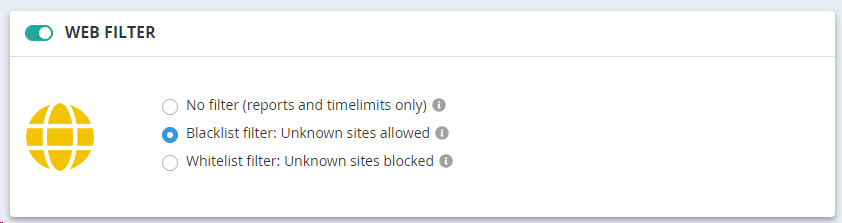
No Filter In this setting, all visited websites are logged, but nothing is filtered: categories, keywords and the age filter have no effect. Your own Web List entries still apply - with the browsers Chrome, Firefox and Edge, individual domains can be blocked or given a time limit even at this level. “No Filter” is therefore ideal for observing web activity first, without blocking content straight away. For blocks based on categories, keywords or age, switch to the next level.
Blacklist In this filter level, all websites not restricted by specific keywords, categories, or age filters are allowed. Your own entries in the Web List can override general filter categories. If a website is blocked due to a category filter or a keyword, but is listed as allowed or time-restricted in the Web List, this block will be overridden. In short, any website not blocked by another filter criterion is allowed at this level.
Whitelist In this setting, you precisely define which websites are permitted. All other websites are automatically blocked. Therefore, no further filters by keywords or categories are available at this level, as only the sites you have specified are allowed. Only entries of the Web List with the access levels Allowed, Allowed PLUS, Time limit or Group are reachable then.
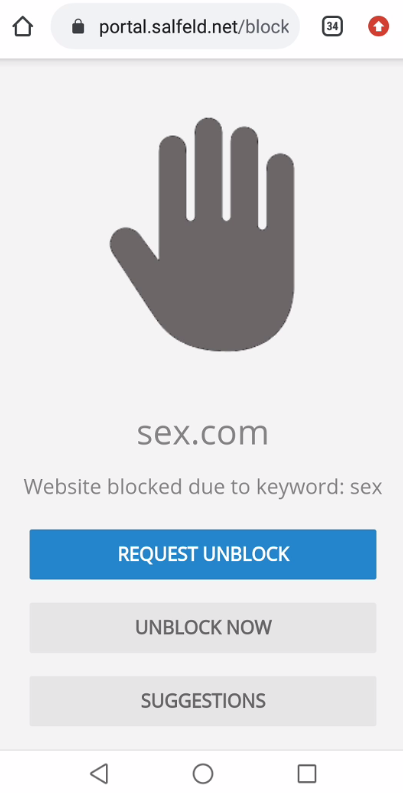
Should a website be blocked by the web filter, a child can send an unblock request. Please note that timing restrictions on websites are only possible with the standard browsers Chrome, Edge and Firefox.
VPN Mode (Android) #
VPN Mode is an optional extension for Android devices. While the standard web filter primarily monitors the address bar of supported browsers, VPN Mode operates directly at the network level (DNS filtering).
- System-wide Filtering: Protection applies not only to browsers but to almost all installed apps. Please note that activating and blocking certain domains/categories may cause malfunctions in some apps.
- Privacy & Performance: This is a local VPN. Traffic is not rerouted through external servers; instead, it is filtered directly on the device. This preserves battery life and ensures maximum privacy.
- Setup: Once activated in the Web Portal, the Required Permissions button will appear on the child’s device. Confirm the subsequent Android system request there to enable the protection.
- Important Note on Caching: Since Android and web browsers cache DNS queries, newly blocked domains/categories may not be restricted immediately. In such cases, clearing the browser cache manually can help.
Finally, please note two technical limitations of Android: a local VPN can only ever be provided by one single app. If another VPN app is already in use on the device, VPN Mode of Child Control can no longer be used. VPN Mode likewise does not work if a private DNS is entered in the Android settings.
Web List #
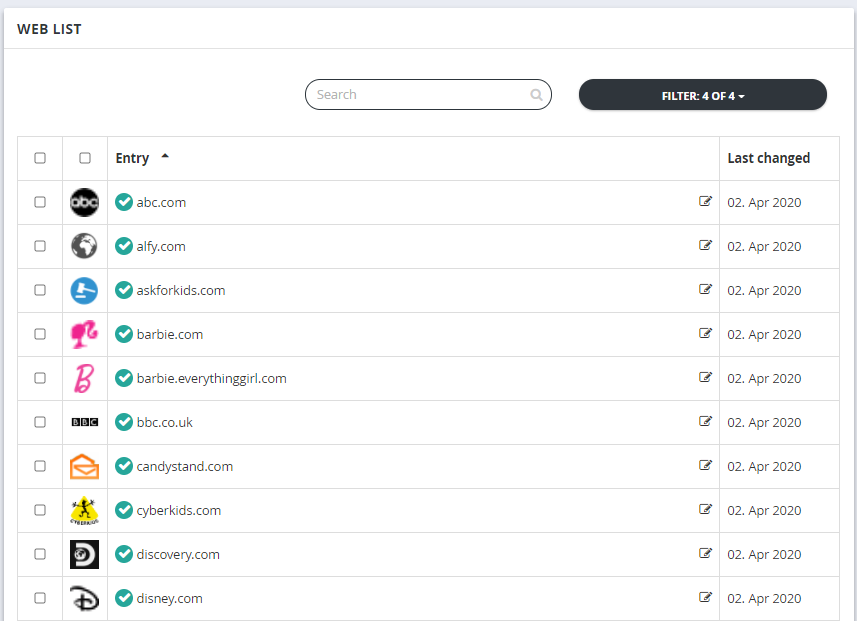
The Web List is the overview of all your own(!) allowed, prohibited and time-limited websites. The Web List contains a few known child sites and two prohibited sites during the first installation. You can select one or more entries by clicking on the icons and then use the Delete or Edit buttons below the list. Use the Add button to add your own entries.
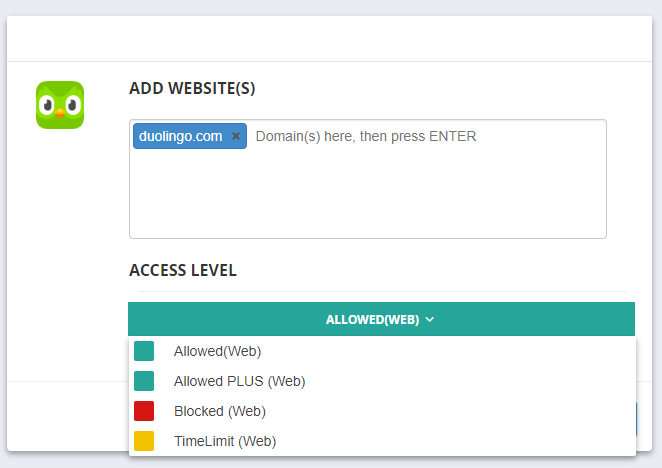
When you create an entry with Add, and when you edit it later, you also set the access level of that entry - whether the domain is allowed, blocked or only reachable for a limited time. The next section describes the access levels in detail.
Important: The Web List is only intended for your own additions. Known unwanted websites (e.g., pornography, chat, social media) can be filtered by the Web Categories. There are several million websites behind the categories. The Web List is therefore the wrong place to manage hundreds (or even more) of websites. A long web list has a negative effect on the performance of the child device.
Access levels for websites #
Every entry in the Web List has exactly one access level - the same five that exist for apps and programs. A domain can therefore not be “Allowed PLUS” and have its own time limit at the same time. You set the access level when you create an entry with Add, or change it later with Edit:
| Access level | Effect on websites | Difference to apps |
|---|---|---|
| Allowed | Reachable, only the device limit applies | Excludes the domain from categories, keywords and age |
| Allowed PLUS | Still reachable after the device limit has expired | Can be opened from the block screen |
| Blocked | The domain can no longer be opened | The blocking page appears right in the browser |
| Time limit | Its own daily, weekly and monthly limit plus blocked times | Only possible with Chrome, Edge and Firefox |
| Group | Several entries share one common limit | Domains and apps may sit in the same group |
Two things apply to the Web List as a whole:
- Your own entries override categories, keywords and the age filter. A domain that you have allowed or time-limited is no longer checked for unwanted terms.
- Above all of this sits the device limit of the device, just as it does for apps: once the daily time is used up, allowed websites are no longer reachable either. The only exception is Allowed PLUS.
How the access levels work in detail - the three options of Allowed PLUS, or creating and renaming groups - is described in the chapter Apps / Programs. The following sections only describe what is different for websites.
Allowed #
This access level is meant for websites that should be available without restrictions (the classic whitelist). It has no time restriction of its own, only the device limit applies.
An entry here is at the same time an exception from filtering: allowed pages - and time-limited ones as well - are no longer checked against keywords, categories and the age filter. So this is also where you enter pages that the filter blocks by mistake (see Website not working (anymore)?).
Allowed PLUS #
With “Allowed PLUS”, individual websites stay reachable even when the device limit of the device has already expired. The child opens them from the “Allowed PLUS” button on the block screen - always allowed apps and websites are listed there together.
The options are the same as for apps: simply always allow, stop the time counter as well, or earn new device time with a bonus. The blocked times for PLUS entries can be set for a domain too - a tutoring site can be always allowed but still blocked after 8 pm.
There are two particularities for websites:
- Windows: if the option “Count also in background” is active for a browser or for the Internet group, it takes precedence. Stopping the counter and the bonus then no longer work for domains.
- For the domain to be recognised reliably, the same applies as for the rest of the web filter: the Chrome browser app on Android, and Chrome, Edge or Firefox on Windows.
Blocked #
This access level is meant for individual websites that you want to block - a particular gaming or video portal you do not want in your household, for instance. When it is opened, the Child Control blocking page appears, from which the child can send an unblock request. You receive it by e-mail report or in the Parent App.
Known unwanted sites, on the other hand, are not blocked here but through the Web Categories. Behind them are several million entries maintained by us - on pornography, chat or social media, for example. The access level “Blocked” is the wrong place to manage hundreds of websites by hand, and a long Web List also slows down the child’s device. If a domain is missing from our category list, please report it to us via Lookup / Suggest URL.
A block through the Web List applies regardless of any time limit. Conversely, a domain stays reachable if it would be caught by a keyword or a category but you have created your own “Allowed” entry for it - your own entry wins.
Time limit #
Here you define how long an Internet page may be visited per day, week or month. In addition you can set blocked times in the weekly table, via details Blocking times also in 15-minute steps. It works the same way as the time limit for apps.
Allowing individual pages for a certain time is particularly suitable for chat sites, online games and video portals, where children tend to spend a lot of time. The easiest way to find out which pages those are in your case is the Reports section.
Important: a time limit for websites only works with the standard browsers Chrome, Edge and Firefox.
Group #
You can assign a domain to one of the groups. The group’s counter runs whenever any entry of this group is active. Once the group limit is reached, all entries of the group are blocked.
The particularity for websites: domains and apps may share a group. On an Android device you can put the YouTube app and the domain youtube.com into one group and limit them together - regardless of how the child opens the portal.
Web Keywords #
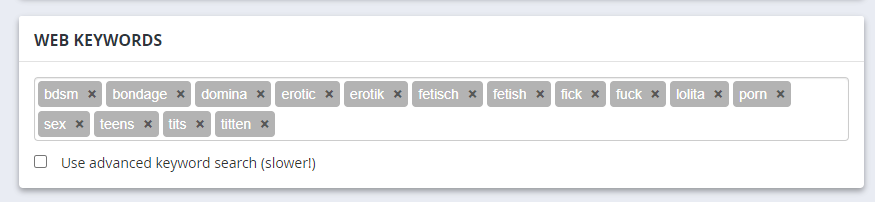
You can define for which keywords a web page should not be displayed. The keywords will then lead to a blocked page during a search. Please note that permitted or time-limited pages are not checked for the keywords. Choose your keywords with care: very often keywords lead to false positives and non-working web pages.
In the Windows version, you also have the option to restrict the keywords to search engines (recommended).
Web Categories #
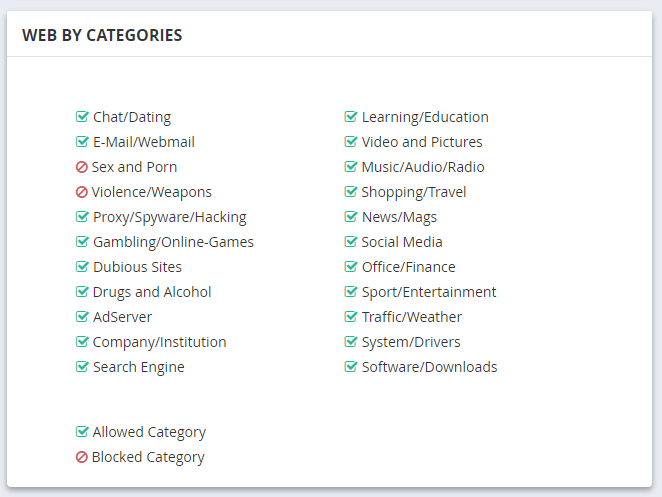
Child Control supports unwanted websites from various categories. The basis is a filter list with several million entries. This list is constantly updated and is available to all users. Activate the unwanted category in this tab by clicking on it, e.g., sex and pornography. You can check whether a URL/domain is already included in the category filter by clicking on Lookup / Suggest URL.
Web Age #
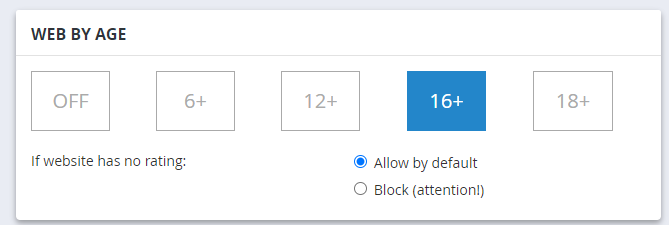
You can set age restrictions for websites. You can also specify what should happen if there is no age rating for the page in question. Whether - and with which age classification - a website is stored with us, you can see under Lookup / Suggest URL. There the appropriate age classification is listed behind the entry. If you do not consider an age classification to be correct or useful, you can report this to us immediately in the Report section. We will then check the entry again.
Google SafeSearch (Windows) #
Google SafeSearch is a feature provided by Google that helps filter out inappropriate or explicit content from search results. It removes images, videos, and websites that may not be suitable for children or for the workplace. This feature is enabled by default but can be disabled by the user in Google Search. By enabling the option “Enforce Google SafeSearch”, SafeSearch will always be applied to search results and the user will no longer be able to turn it off. Unfortunately, this feature is currently only available for the Windows version.
Lookup / Suggest URL #
You can check whether a certain domain already exists in our internal blacklist (category list).
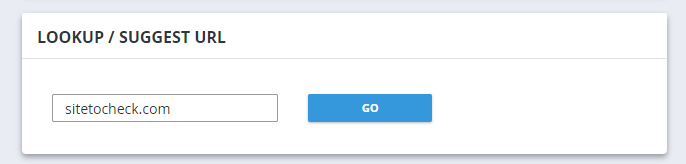
If the domain is not yet in our list, you can submit a proposal this way. You can also select the appropriate category and your age estimation. After a short check we will add this domain to our list. You can also report false alarms or wrongly blocked domains in this way.
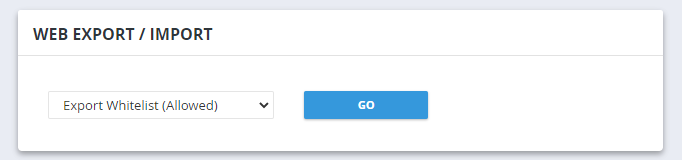
Import/Export Black-/Whitelists #
Under this item you can save blacklists (forbidden URLs and keywords) as well as whitelists (allowed URLs and domains) in a simple text format outside the web portal (e.g., as a backup copy). An export of all settings can be found under Profiles.
Options (Windows) #
In the Windows version of the web filter, you have access to additional configuration options.
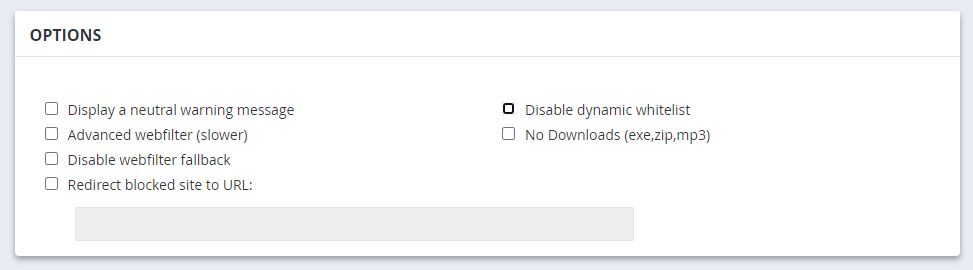
Display neutral warning: Enable this option to hide the specific reason for a web block. Instead of “Page blocked due to keyword Porno,” it will simply display “Unwanted website accessed.”
Advanced webfilter (slower): The extended web filter not only checks the URL or domain,
but also the HTML elements (<meta>, <title>) of the respective page. Note: This setting
can noticeably slow down your internet speed.
Disable web filter fallback: This feature ensures that when a blocked website is accessed, the Child Control blocking screen appears in the browser, but the page will automatically close after about 15 seconds. This serves as additional protection in case antivirus software interferes with the web filter’s functionality. If you do not want the browser to close automatically, enable this checkbox.
Redirect blocked site to URL: Here you can specify that instead of showing the blocking screen, users are redirected to a custom page - for example, a child-friendly search engine. However, keep in mind that in this case no blocking screen will be displayed, and the user will not see the reason for the block.
Dynamic whitelist enabled: This option is only available if you have selected the whitelist filter level. It prevents embedded domains or URLs from being loaded on an approved website. We recommend keeping the dynamic whitelist enabled. Disable this option only if you require an absolutely strict whitelist filter.
Web filter all processes: By default, the web filter is applied to the browsers Chrome, Edge, and Firefox. It also applies to any applications you have added under Programs in the Internet Group category. If you enable this option, the web filter will apply to all Windows processes - which may cause unexpected behavior. We recommend not using this option.
No warning for embedded content: In some cases, a website may load content from another domain (e.g. images or scripts). If the web filter blocks such third-party domains and the blocking notice cannot be shown directly in the browser window, a small notification box is displayed instead. With restrictive filter settings, this can lead to many such warnings. This option allows you to completely disable notifications for blocked embedded content.
No downloads: Prevents the direct download of files with the extensions *.exe, *.zip, and *.mp3, as long as the file extension is directly included in the URL. Downloads triggered via JavaScript cannot be blocked by this feature.
Website not working (anymore)? #
If you encounter problems with website display after activating the web filter (e.g., embedded videos not displaying correctly), it could be due to your filter settings. First, check if the issue is caused by the web filter by temporarily disabling it and testing if the website functions correctly without the filter.
If the website loads correctly with the web filter disabled, review the Reports -> Blocked History. Record all domains that were blocked during the access and add them to the Web List with the access level “Allowed”. Sometimes, the blocked domains are cryptic server addresses used for hosting videos. On Windows, a third-party antivirus program could also be the culprit. See FAQ Antivirus.
Especially in Whitelist mode, it is often necessary to allow additional domains to ensure the functionality of specific websites. By using the logs and the history of blocked pages, you can precisely understand which contents were blocked and make the necessary adjustments.