Profiles #
Profiles allow you to quickly and easily load and save existing settings. This is practical if, for example, you want to use an existing configuration for another device. You can also use profiles to cover different scenarios; it would be conceivable to create a profile for school time and a profile for vacation time. Depending on the purpose, you could then quickly assign such a saved profile to a device.
Profiles are saved in your account in the Web Portal and remain even if you have uninstalled the app on the child device. Only when you delete your account completely are the profiles also deleted. Profiles work across devices, meaning you can use a profile from an Android device for Windows (and vice versa). As an alternative to saving within the Web Portal / your account, you can also save and load profiles locally on your PC.
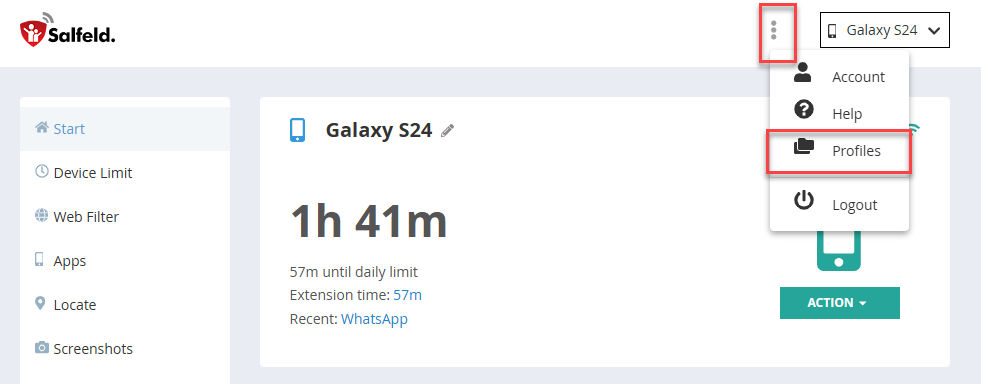
To load a profile or to save it, select the Profiles item from the three-dot menu at the top right of the device selection. A profile is always saved or loaded for the currently active Android device or, for Windows, for the active device and the selected user. Passwords, login email address, licence and logs of the respective device are not saved in the profile. When loading a profile, entries in the app (program) list that do not exist on the target device are discarded. For example, if you saved time limits for a game app in a profile that does not exist on the device being loaded, this entry will be ignored when loading.
Special case: Using a local PC #
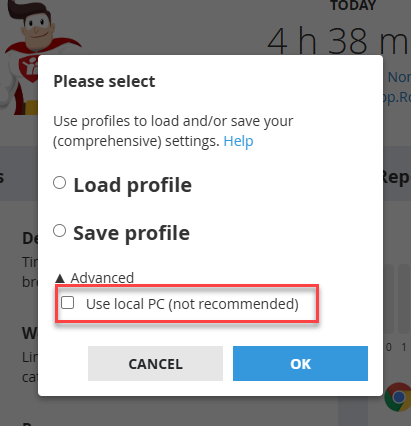
The profile is linked to the login used in Child Control, meaning the email address of the account. If you want to save a profile and use it in another account (with a different email address), you must save it locally on a PC. To do this, open the web portal on a Windows PC (not on a mobile device) and save the settings locally. In the other account, you can then load the profile locally in the same way. Only required when changing the login or email address: